> ## Documentation Index
> Fetch the complete documentation index at: https://docs.upsolve.ai/llms.txt
> Use this file to discover all available pages before exploring further.
# Agent Observability
> Inspect the step-by-step trace of how your agent answered a question, and the evaluations that graded it.
Every answer your agent produces is the result of a sequence of steps: retrieving schema, looking up golden examples, generating SQL, executing it, building a chart, and writing the narrative. Agent Observability gives you the full trace of that process — plus the automated evaluations that graded the result — so you can see exactly why an answer came out the way it did.
## Reaching a trace
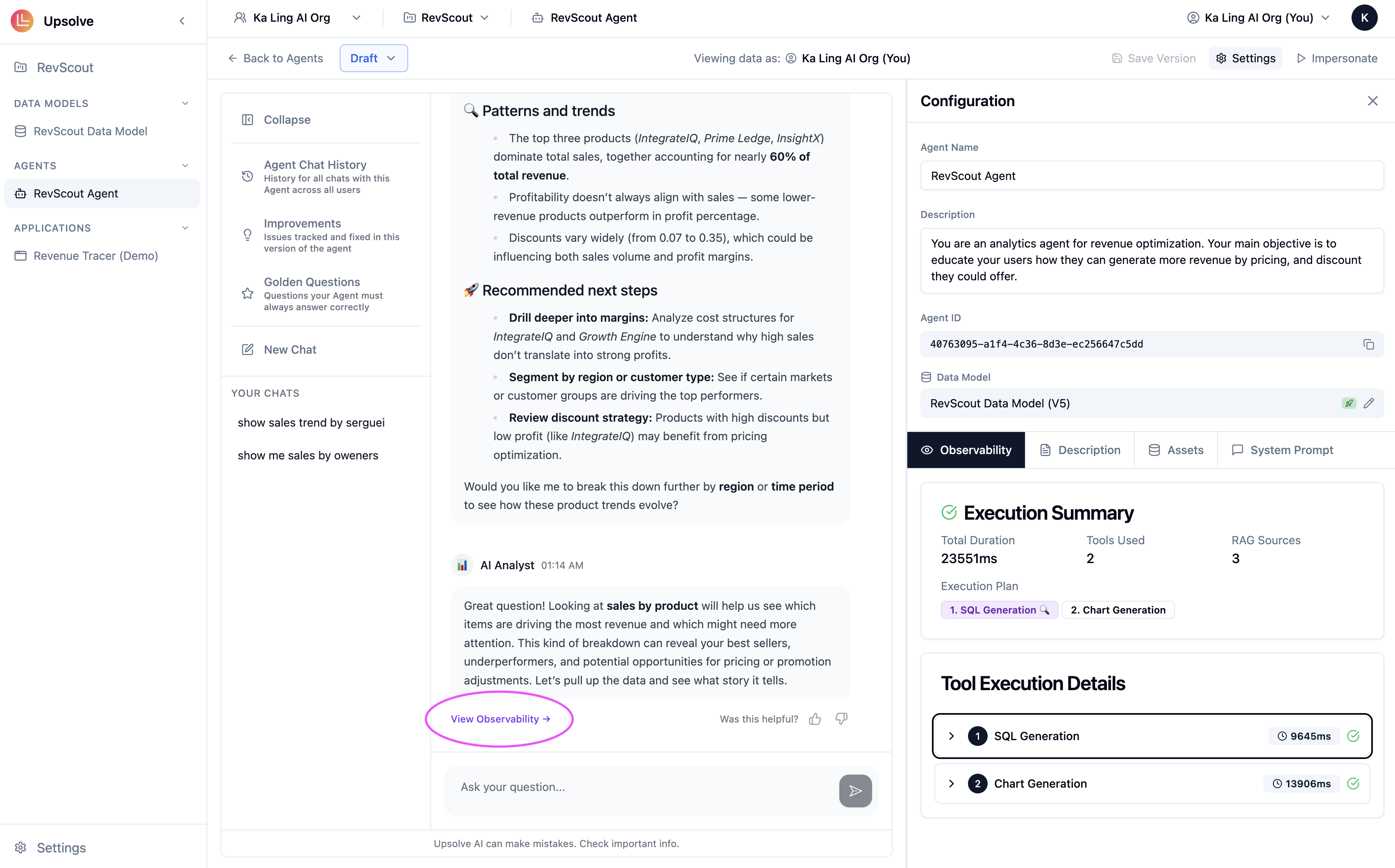
**From a live chat** — after the agent responds, click **Observability →** beneath the answer. The trace opens in the right-hand panel and follows the conversation as it continues.
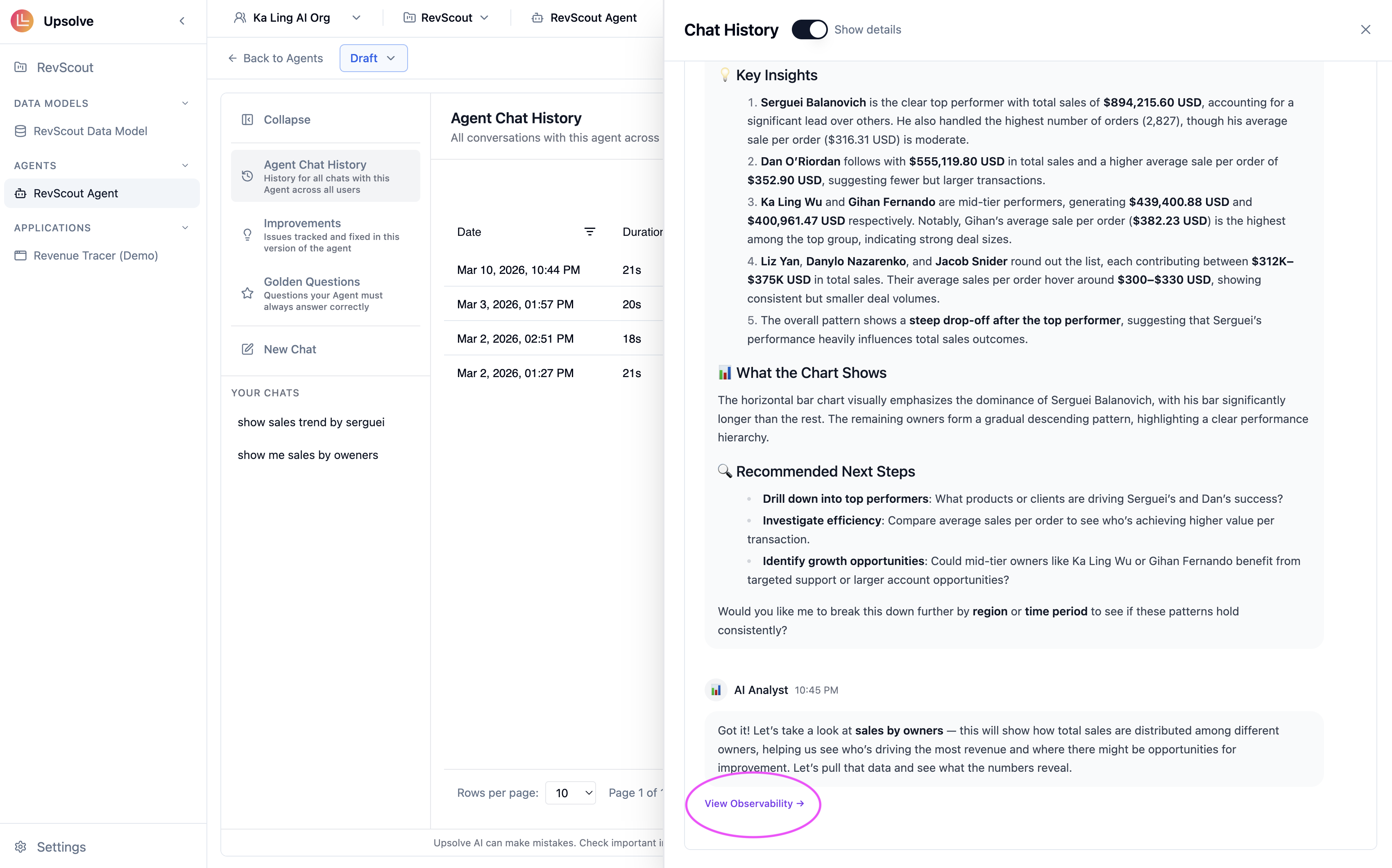
 **From Chat History** — open [Chat History](/ai-agent-builder/chat-history), click a row, and switch the sidebar to the **Observability** tab. This works for every conversation, including deployed end-user chats and MCP calls. The tab is hidden for conversations that made no tool calls, because there is nothing to trace.
 ## What the trace shows
### The summary bar
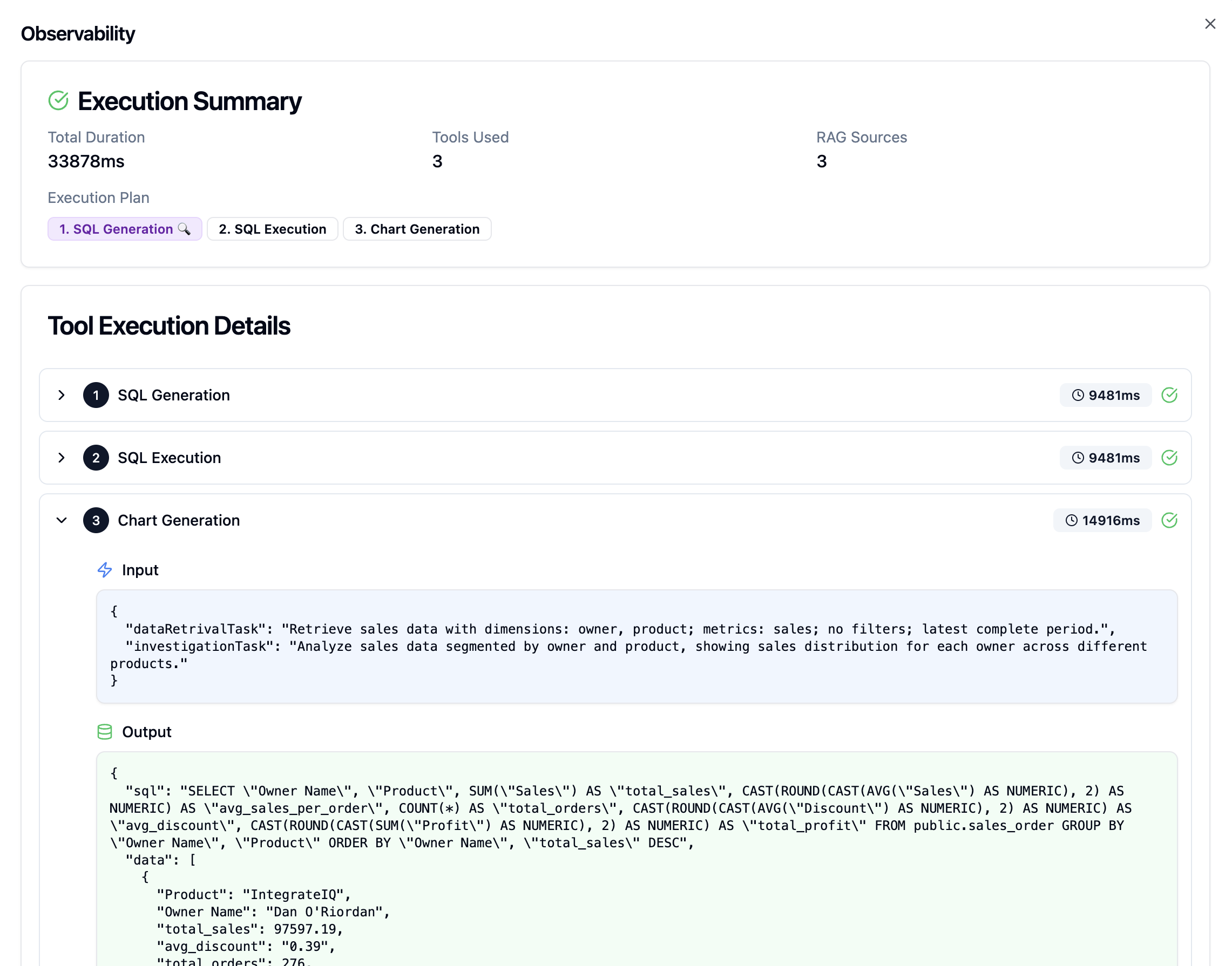
At the top of the trace, a row of chips summarises the whole conversation:
* **steps** — total number of tool calls the agent made.
* **duration** — total time spent inside those calls, in milliseconds.
* **rag** — how many golden queries and golden charts were retrieved as references.
* **evals** — how many automated evaluations ran. The chip is green when all of them passed and amber when any did not.
* **errors** — present only when at least one step failed.
**Expand** and **Collapse** open or close every step at once.
## What the trace shows
### The summary bar
At the top of the trace, a row of chips summarises the whole conversation:
* **steps** — total number of tool calls the agent made.
* **duration** — total time spent inside those calls, in milliseconds.
* **rag** — how many golden queries and golden charts were retrieved as references.
* **evals** — how many automated evaluations ran. The chip is green when all of them passed and amber when any did not.
* **errors** — present only when at least one step failed.
**Expand** and **Collapse** open or close every step at once.
 ### Per-exchange sections
Below the summary, the trace is broken into one section per user question, each with up to four blocks:
**User Query** — the question as the user asked it.
**Agent Pipeline** — the ordered list of steps the agent took. Every step shows its own duration and success/error state, and expands to reveal its inputs and outputs. The steps you'll see include:
| Step | What it did |
| -------------------------------------------------------------- | ----------------------------------------------------------------------------------------------------------------------------------------------------------------- |
| **Schema Retrieval** | Searched the data model for the tables and columns relevant to the question. |
| **Selectable Values** | Searched actual column values, so a filter on a category name resolves to a value that exists. |
| **Full Schema** | Loaded the whole data model — used for "what data do I have?" style questions. |
| **Golden Examples** | Retrieved confirmed question → SQL → chart pairs to use as references. |
| **SQL Generation** | Wrote the query. Shows the task it was given, the schema it was handed, the golden references it used, and the SQL it produced. If a number is wrong, start here. |
| **SQL Validation** | Checked the query against the database before running it for real. |
| **Data Retrieval** / **SQL Execution** | Ran the query and returned rows. Shows the row count and the columns that came back. |
| **Chart Generation** / **Render Chart** / **Chart Validation** | Chose the chart type, axis mappings and formatting. If the visualization is wrong but the numbers are right, the config here tells you what the agent picked. |
| **Knowledge Base Search** / **Knowledge Base File** | Searched or read a [Knowledge Base](/ai-agent-builder/knowledge-base) document. |
| **Skill** / **Skill Search** / **Skill Read** | Loaded a [Skill](/ai-agent-builder/skills) on demand. Internal plumbing skills are hidden; your own and learned skills are shown. |
| **Report Generation** / **Shareable Report** | Produced a CSV/PDF export or a shareable analysis. |
| **Suggestions** | Generated the follow-up questions offered under the answer. |
| **Learning Signal** | Recorded a correction the agent detected — the stage that went wrong, the failing artifact, and the user's correction. |
Tools you connected through [MCP](/ai-agent-builder/mcp-context) appear here too, under their own names.
**RAG Sources** — wherever a step used golden assets, the trace lists them as cards showing the retrieved question, its SQL, and a preview of its chart. Each card has an inline **Edit** button that opens the [Golden Asset](/ai-agent-builder/golden-assets) editor directly, so when a trace shows the agent leaning on a bad example you can fix it without leaving the trace.
### Per-exchange sections
Below the summary, the trace is broken into one section per user question, each with up to four blocks:
**User Query** — the question as the user asked it.
**Agent Pipeline** — the ordered list of steps the agent took. Every step shows its own duration and success/error state, and expands to reveal its inputs and outputs. The steps you'll see include:
| Step | What it did |
| -------------------------------------------------------------- | ----------------------------------------------------------------------------------------------------------------------------------------------------------------- |
| **Schema Retrieval** | Searched the data model for the tables and columns relevant to the question. |
| **Selectable Values** | Searched actual column values, so a filter on a category name resolves to a value that exists. |
| **Full Schema** | Loaded the whole data model — used for "what data do I have?" style questions. |
| **Golden Examples** | Retrieved confirmed question → SQL → chart pairs to use as references. |
| **SQL Generation** | Wrote the query. Shows the task it was given, the schema it was handed, the golden references it used, and the SQL it produced. If a number is wrong, start here. |
| **SQL Validation** | Checked the query against the database before running it for real. |
| **Data Retrieval** / **SQL Execution** | Ran the query and returned rows. Shows the row count and the columns that came back. |
| **Chart Generation** / **Render Chart** / **Chart Validation** | Chose the chart type, axis mappings and formatting. If the visualization is wrong but the numbers are right, the config here tells you what the agent picked. |
| **Knowledge Base Search** / **Knowledge Base File** | Searched or read a [Knowledge Base](/ai-agent-builder/knowledge-base) document. |
| **Skill** / **Skill Search** / **Skill Read** | Loaded a [Skill](/ai-agent-builder/skills) on demand. Internal plumbing skills are hidden; your own and learned skills are shown. |
| **Report Generation** / **Shareable Report** | Produced a CSV/PDF export or a shareable analysis. |
| **Suggestions** | Generated the follow-up questions offered under the answer. |
| **Learning Signal** | Recorded a correction the agent detected — the stage that went wrong, the failing artifact, and the user's correction. |
Tools you connected through [MCP](/ai-agent-builder/mcp-context) appear here too, under their own names.
**RAG Sources** — wherever a step used golden assets, the trace lists them as cards showing the retrieved question, its SQL, and a preview of its chart. Each card has an inline **Edit** button that opens the [Golden Asset](/ai-agent-builder/golden-assets) editor directly, so when a trace shows the agent leaning on a bad example you can fix it without leaving the trace.
 **Agent Response** — the narrative the user actually read.
**Evaluations** — the automated grades for this exchange. See below.
## Evaluations
Upsolve runs continuous, LLM-based evaluations against production traces. They run automatically in the background — you don't trigger them, and they don't slow the agent's answer down — and their verdicts flow back into the **Evals** column in [Chat History](/ai-agent-builder/chat-history) and into the **Evaluations** block of the trace.
### Reading a verdict
Each evaluation resolves to one of three states:
* **Pass** — the evaluation's criterion was met.
* **Fail** — the criterion was not met, or the evaluation itself errored.
* **Pending** — the evaluation hasn't returned a verdict yet. Evaluations run asynchronously, so a very recent conversation will often show pending for a short while.
The row-level verdict in Chat History is the worst state present: any failure makes the row fail, otherwise any pass makes it pass, otherwise it's pending. Hover the pill for the per-evaluation breakdown.
Expand an evaluation in the trace to see:
* **Score** — the numeric grade the evaluator returned, when it produced one.
* **Description** — what this evaluation checks.
* **Annotation** — the evaluator's written reasoning for the verdict it gave. This is the part worth reading: it usually names the specific thing that went wrong.
**Agent Response** — the narrative the user actually read.
**Evaluations** — the automated grades for this exchange. See below.
## Evaluations
Upsolve runs continuous, LLM-based evaluations against production traces. They run automatically in the background — you don't trigger them, and they don't slow the agent's answer down — and their verdicts flow back into the **Evals** column in [Chat History](/ai-agent-builder/chat-history) and into the **Evaluations** block of the trace.
### Reading a verdict
Each evaluation resolves to one of three states:
* **Pass** — the evaluation's criterion was met.
* **Fail** — the criterion was not met, or the evaluation itself errored.
* **Pending** — the evaluation hasn't returned a verdict yet. Evaluations run asynchronously, so a very recent conversation will often show pending for a short while.
The row-level verdict in Chat History is the worst state present: any failure makes the row fail, otherwise any pass makes it pass, otherwise it's pending. Hover the pill for the per-evaluation breakdown.
Expand an evaluation in the trace to see:
* **Score** — the numeric grade the evaluator returned, when it produced one.
* **Description** — what this evaluation checks.
* **Annotation** — the evaluator's written reasoning for the verdict it gave. This is the part worth reading: it usually names the specific thing that went wrong.
 ### What gets evaluated
Evaluations fall into two broad families. The exact set is configured per deployment, so talk to your Upsolve contact to add one or tune an existing one for your agent.
**Answer quality** — did the agent actually answer the question, and is the answer right? *Answer Correctness Judge* is the workhorse here: it grades the response against the question that was asked and the data the agent retrieved to answer it.
**Conversation health** — how the exchange is going across turns, rather than within a single answer. *Multi-Turn Forgetfulness Detector* catches the agent losing context established earlier in the conversation — a filter the user set three turns ago that silently stopped being applied. *User Frustration Detector* catches the user re-asking, correcting, or pushing back, which is the earliest reliable signal that something is wrong even when no step errored and no thumbs down was given.
Conversation-health evaluations read the whole thread, so they only produce a meaningful verdict once a conversation has enough turns. A single-question session will typically show them as not applicable rather than pass or fail.
Some evaluations run purely for Upsolve's own quality monitoring and are deliberately not surfaced in the trace, so the count in the **evals** chip can be lower than the number of evaluations that actually ran.
## Using traces to improve your agent
Observability earns its keep when an answer is wrong. The common patterns:
**Wrong SQL, right-sounding answer** — the agent generated plausible SQL that doesn't implement your business logic. Open **SQL Generation** and read the query. The fix is usually a more precise [System Prompt](/ai-agent-builder/system-prompts) rule, or a [Golden Query](/ai-agent-builder/golden-assets) demonstrating the correct approach.
**No RAG sources retrieved for a common question** — the agent answered from scratch instead of referencing a validated example. Check whether a Golden Query covers this pattern, and whether the phrasing is semantically close enough to trigger retrieval.
**The wrong golden asset was retrieved** — the trace shows a RAG source that doesn't fit the question. Use the inline **Edit** button on the card to sharpen that asset's question text, or retire it.
**Correct SQL, wrong chart** — the data was right but the visualization misled. Add a [Golden Chart](/ai-agent-builder/golden-assets) for this question type.
**Errors in the pipeline** — a red step names the failure directly. A failed SQL execution usually points at a data model that promises a column the warehouse doesn't have; a failed validation usually points at generated SQL the dialect rejects.
**High cost or many steps** — the trace shows repeated SQL attempts before a correct result. That normally means the data model annotations or system prompt need more specificity, so the agent stops guessing.
**A thumbs down with no obvious error** — read the **Annotation** on the failing evaluation, then the **Agent Response** block. Framing problems (over-claiming, missing caveats, too much jargon) don't surface as errors anywhere else.
## Next steps
Browse conversations as sessions or traces, and filter on evals, feedback, errors and cost.
Add example queries and charts to fix patterns you identify in traces.
### What gets evaluated
Evaluations fall into two broad families. The exact set is configured per deployment, so talk to your Upsolve contact to add one or tune an existing one for your agent.
**Answer quality** — did the agent actually answer the question, and is the answer right? *Answer Correctness Judge* is the workhorse here: it grades the response against the question that was asked and the data the agent retrieved to answer it.
**Conversation health** — how the exchange is going across turns, rather than within a single answer. *Multi-Turn Forgetfulness Detector* catches the agent losing context established earlier in the conversation — a filter the user set three turns ago that silently stopped being applied. *User Frustration Detector* catches the user re-asking, correcting, or pushing back, which is the earliest reliable signal that something is wrong even when no step errored and no thumbs down was given.
Conversation-health evaluations read the whole thread, so they only produce a meaningful verdict once a conversation has enough turns. A single-question session will typically show them as not applicable rather than pass or fail.
Some evaluations run purely for Upsolve's own quality monitoring and are deliberately not surfaced in the trace, so the count in the **evals** chip can be lower than the number of evaluations that actually ran.
## Using traces to improve your agent
Observability earns its keep when an answer is wrong. The common patterns:
**Wrong SQL, right-sounding answer** — the agent generated plausible SQL that doesn't implement your business logic. Open **SQL Generation** and read the query. The fix is usually a more precise [System Prompt](/ai-agent-builder/system-prompts) rule, or a [Golden Query](/ai-agent-builder/golden-assets) demonstrating the correct approach.
**No RAG sources retrieved for a common question** — the agent answered from scratch instead of referencing a validated example. Check whether a Golden Query covers this pattern, and whether the phrasing is semantically close enough to trigger retrieval.
**The wrong golden asset was retrieved** — the trace shows a RAG source that doesn't fit the question. Use the inline **Edit** button on the card to sharpen that asset's question text, or retire it.
**Correct SQL, wrong chart** — the data was right but the visualization misled. Add a [Golden Chart](/ai-agent-builder/golden-assets) for this question type.
**Errors in the pipeline** — a red step names the failure directly. A failed SQL execution usually points at a data model that promises a column the warehouse doesn't have; a failed validation usually points at generated SQL the dialect rejects.
**High cost or many steps** — the trace shows repeated SQL attempts before a correct result. That normally means the data model annotations or system prompt need more specificity, so the agent stops guessing.
**A thumbs down with no obvious error** — read the **Annotation** on the failing evaluation, then the **Agent Response** block. Framing problems (over-claiming, missing caveats, too much jargon) don't surface as errors anywhere else.
## Next steps
Browse conversations as sessions or traces, and filter on evals, feedback, errors and cost.
Add example queries and charts to fix patterns you identify in traces.