> ## Documentation Index
> Fetch the complete documentation index at: https://docs.upsolve.ai/llms.txt
> Use this file to discover all available pages before exploring further.
# Chat History
> Review every conversation your agent has handled, as sessions or as individual traces.
Chat History is the operational view of your agent. It lists every conversation the agent has handled — sessions run in Agent Studio, live chats from deployed end users, and calls that came in over MCP — with the quality, cost and reliability signals for each one attached to the row.
It answers two different questions, and it has a view for each:
* **Sessions** — "how is this conversation going?" One row per conversation.
* **Traces** — "how did this answer turn out?" One row per user question → agent answer exchange.
Use the **Sessions / Traces** toggle in the toolbar to switch. Both views share the same filters, column controls, time range and CSV export; only the grain changes.
## Sessions view
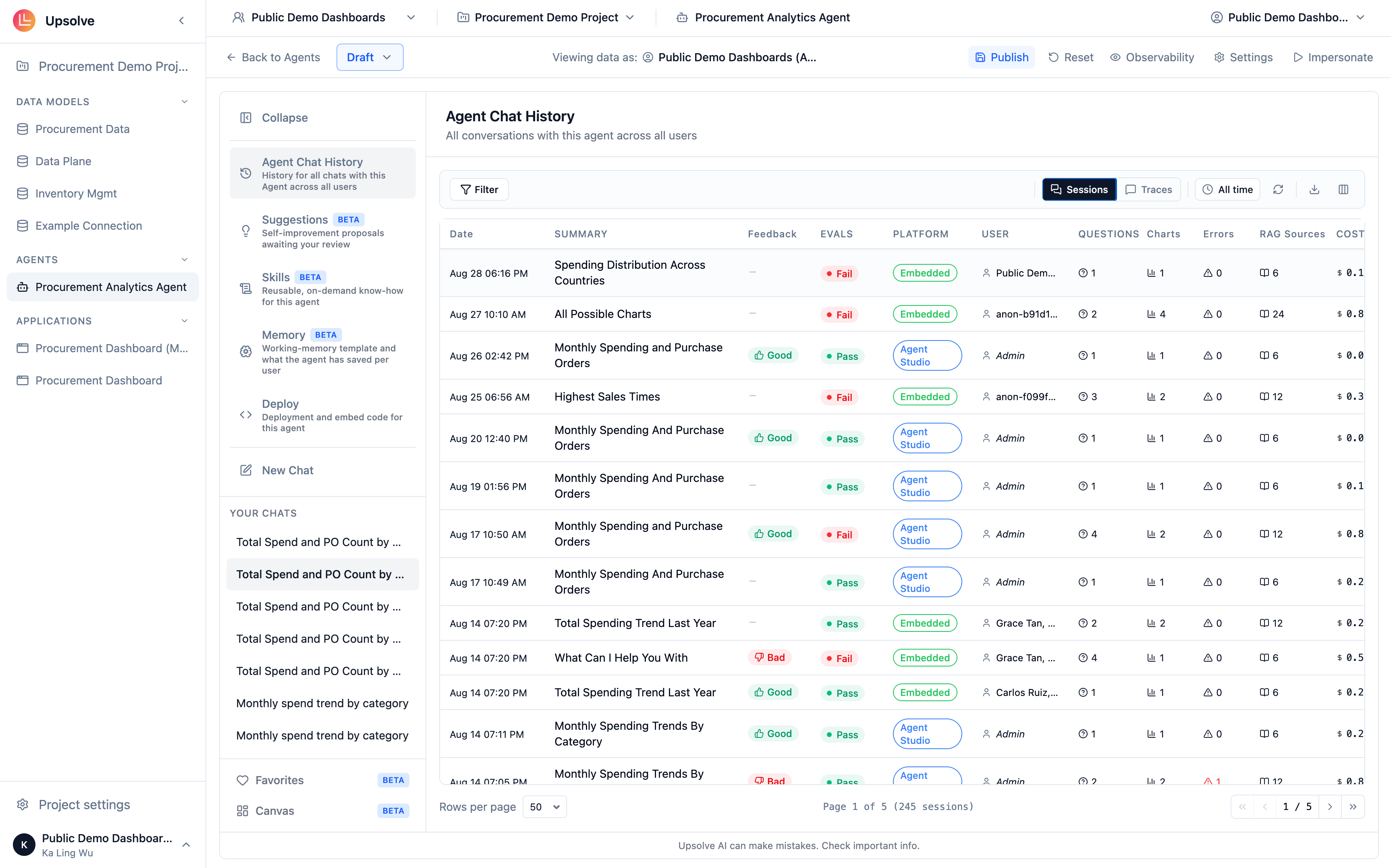
One row per conversation. Available columns:
| Column | What it shows |
| --------------- | ---------------------------------------------------------------------------------------------------------------------------------------- |
| **Date** | When the conversation started. |
| **Evals** | Aggregate verdict of the automated evaluations that ran on this conversation — pass, fail, or pending. Hover for the per-eval breakdown. |
| **Summary** | A short generated description of what the conversation was about. |
| **Feedback** | The thumbs up / thumbs down the user submitted, if any. Hover to read the written comment. |
| **Charts** | How many charts the agent built. |
| **Errors** | How many steps failed — a failed SQL execution, a tool error, a rejected query. |
| **Questions** | How many questions the user asked in the conversation. |
| **RAG Sources** | How many golden queries and golden charts were retrieved as references. |
| **Cost** | Model spend for the conversation, in USD. |
| **Duration** | Wall-clock length of the session. |
| **User** | The project user who was chatting, or *Admin* for a builder session in Agent Studio. |
| **Platform** | Where the conversation came from — *Agent Studio*, *Embedded*, or *MCP*. |
**Duration**, **User** and **Platform** are hidden by default. Turn them on from the column picker.
 ## Traces view
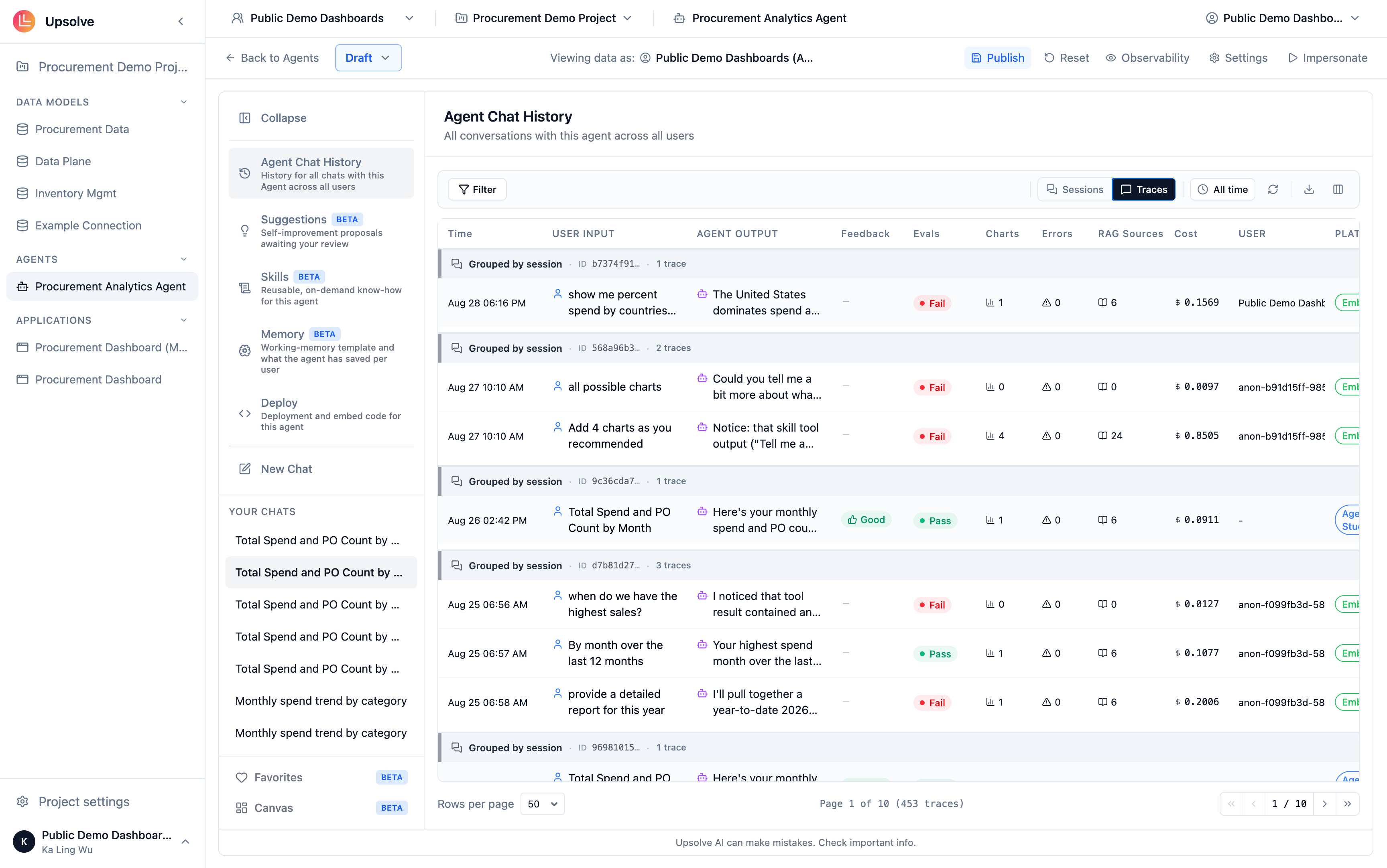
One row per exchange, so a five-question conversation produces five rows. This is the grain to work at when you're triaging quality: an eval failure, a thumbs down or an error belongs to a specific answer, not to the whole session.
| Column | What it shows |
| ---------------- | ------------------------------------------------ |
| **Time** | When the exchange happened. |
| **Evals** | The evaluation verdict for this specific answer. |
| **User Input** | The question as the user asked it. |
| **Agent Output** | The answer the agent gave. |
| **Feedback** | Thumbs up / down on this answer. |
| **Charts** | Charts produced by this answer. |
| **Errors** | Failed steps within this answer. |
| **RAG Sources** | Golden assets retrieved for this answer. |
| **Cost** | Model spend attributed to this exchange. |
| **User** | Who asked. |
| **Platform** | Where the question came from. |
| **Trace ID** | The observability trace identifier. |
| **#** | The exchange's position within its conversation. |
**User**, **Platform**, **Trace ID** and **#** are hidden by default.
## Traces view
One row per exchange, so a five-question conversation produces five rows. This is the grain to work at when you're triaging quality: an eval failure, a thumbs down or an error belongs to a specific answer, not to the whole session.
| Column | What it shows |
| ---------------- | ------------------------------------------------ |
| **Time** | When the exchange happened. |
| **Evals** | The evaluation verdict for this specific answer. |
| **User Input** | The question as the user asked it. |
| **Agent Output** | The answer the agent gave. |
| **Feedback** | Thumbs up / down on this answer. |
| **Charts** | Charts produced by this answer. |
| **Errors** | Failed steps within this answer. |
| **RAG Sources** | Golden assets retrieved for this answer. |
| **Cost** | Model spend attributed to this exchange. |
| **User** | Who asked. |
| **Platform** | Where the question came from. |
| **Trace ID** | The observability trace identifier. |
| **#** | The exchange's position within its conversation. |
**User**, **Platform**, **Trace ID** and **#** are hidden by default.
 ## Working the table
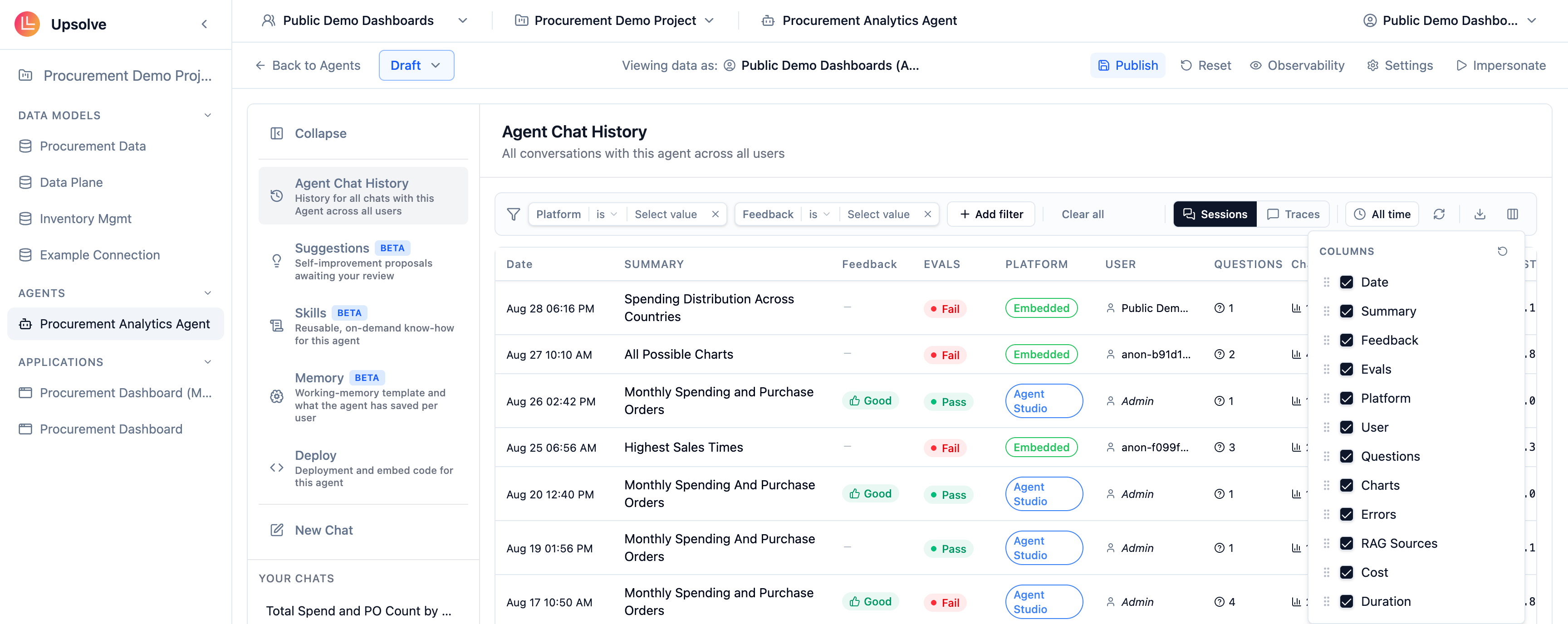
**Filters** — the chip bar on the left of the toolbar filters on any visible column: eval status, feedback, platform, user, and numeric ranges for charts, errors, questions, RAG sources and cost. Filters follow column visibility: hiding a column hides its filter but keeps the filter's value, so toggling the column back on restores it.
**Time range** — narrow to the past 5 minutes, 30 minutes, hour, day, week, month, 3 months or year. Defaults to all time.
**Columns** — the column picker lets you show and hide columns and drag them into the order you want. Columns can also be resized by dragging their edge in the header. Your choices persist per view; **Reset to defaults** in the picker restores the shipped layout.
**Reload** — re-fetch without leaving the page. Useful when you're watching a live deployment.
**Export CSV** — exports the current view with the columns you have visible, so the export matches what you're looking at.
## Working the table
**Filters** — the chip bar on the left of the toolbar filters on any visible column: eval status, feedback, platform, user, and numeric ranges for charts, errors, questions, RAG sources and cost. Filters follow column visibility: hiding a column hides its filter but keeps the filter's value, so toggling the column back on restores it.
**Time range** — narrow to the past 5 minutes, 30 minutes, hour, day, week, month, 3 months or year. Defaults to all time.
**Columns** — the column picker lets you show and hide columns and drag them into the order you want. Columns can also be resized by dragging their edge in the header. Your choices persist per view; **Reset to defaults** in the picker restores the shipped layout.
**Reload** — re-fetch without leaving the page. Useful when you're watching a live deployment.
**Export CSV** — exports the current view with the columns you have visible, so the export matches what you're looking at.
 ## Opening a conversation
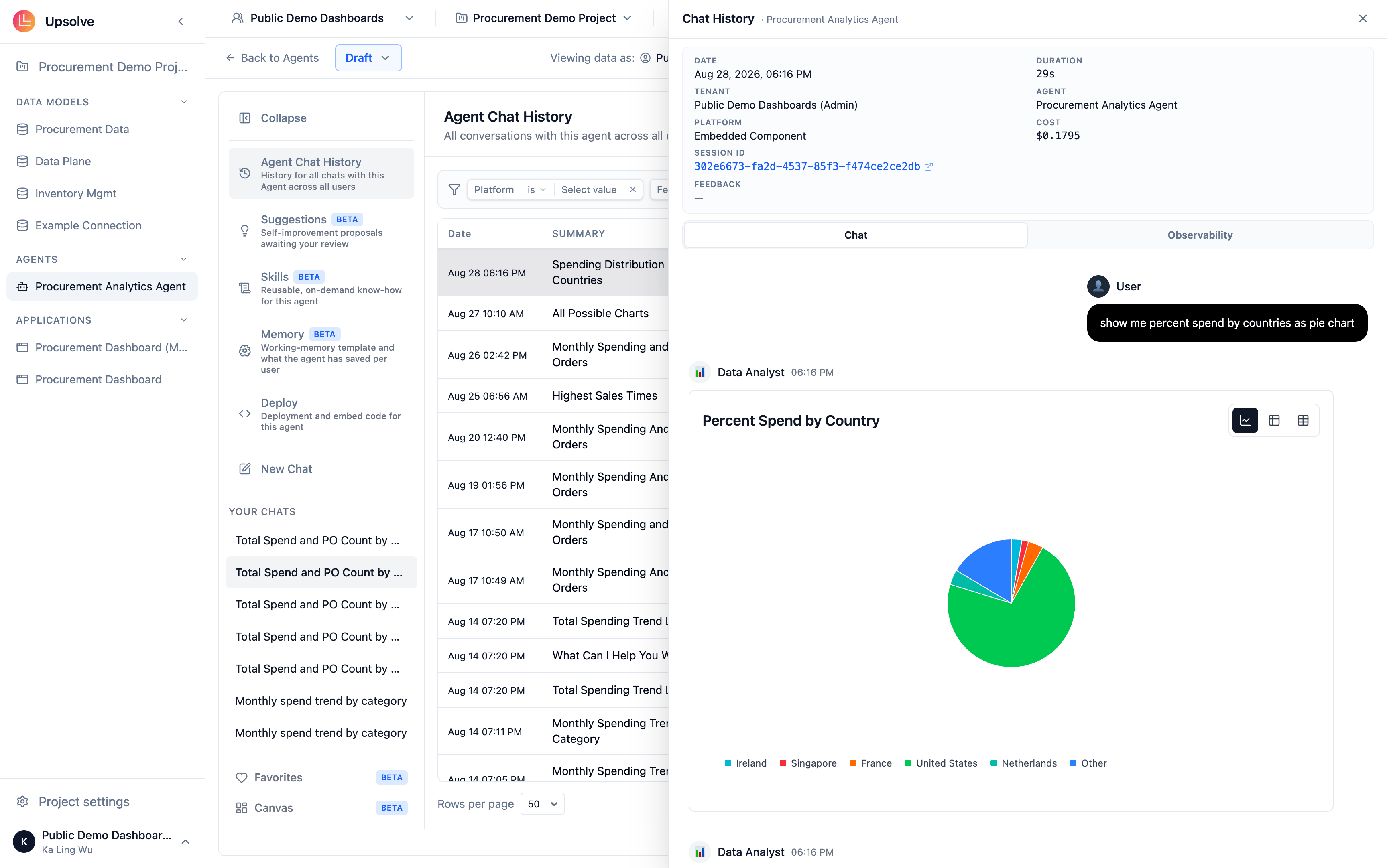
Click any row to open the detail sidebar.
The metadata card at the top carries **Date**, **Duration**, **Tenant**, **Agent**, **Platform**, **Cost**, the **Session ID**, and — when you opened the sidebar from a Traces row — the **Trace ID** for that exchange. Both identifiers can be copied with one click. If the user left feedback, **Feedback** and their **Comment** appear underneath.
Below the metadata card are two tabs:
* **Chat** — the conversation exactly as it happened, including the charts the agent rendered.
* **Observability** — the step-by-step trace of what the agent did. This tab only appears for conversations that actually made tool calls.
## Opening a conversation
Click any row to open the detail sidebar.
The metadata card at the top carries **Date**, **Duration**, **Tenant**, **Agent**, **Platform**, **Cost**, the **Session ID**, and — when you opened the sidebar from a Traces row — the **Trace ID** for that exchange. Both identifiers can be copied with one click. If the user left feedback, **Feedback** and their **Comment** appear underneath.
Below the metadata card are two tabs:
* **Chat** — the conversation exactly as it happened, including the charts the agent rendered.
* **Observability** — the step-by-step trace of what the agent did. This tab only appears for conversations that actually made tool calls.
 Everything here covers deployed end-user chats as well as your own Agent Studio sessions. There is nothing extra to enable — a conversation from an embedded deployment or an MCP client shows up with its **Platform** set accordingly.
## Next steps
Inspect the step-by-step trace behind any answer, and the evaluations that graded it.
Add example queries and charts to fix patterns you identify in past conversations.
Everything here covers deployed end-user chats as well as your own Agent Studio sessions. There is nothing extra to enable — a conversation from an embedded deployment or an MCP client shows up with its **Platform** set accordingly.
## Next steps
Inspect the step-by-step trace behind any answer, and the evaluations that graded it.
Add example queries and charts to fix patterns you identify in past conversations.