> ## Documentation Index
> Fetch the complete documentation index at: https://docs.upsolve.ai/llms.txt
> Use this file to discover all available pages before exploring further.
# Data Model & Schema
> Choose which tables and columns the agent can see, and encode what they mean.
The Data Model is the foundation of your agent's knowledge — every other entry point in this section ([System Prompts](/ai-agent-builder/system-prompts), [Golden Assets](/ai-agent-builder/golden-assets), [Skills](/ai-agent-builder/skills), [Knowledge Base](/ai-agent-builder/knowledge-base), [User Memory](/ai-agent-builder/user-memory), and [MCP](/ai-agent-builder/mcp-context)) builds on top of it. It controls two things: what data the agent can access, and what context it has to interpret that data correctly. A well-configured data model is the difference between an agent that writes plausible SQL and one that writes the *right* SQL for your business.
## Selecting tables and columns
Not every table in your database is relevant to every question your agent will answer. Narrowing the schema down to what matters reduces ambiguity, improves query accuracy, and avoids the agent making inferences across data it shouldn't touch.
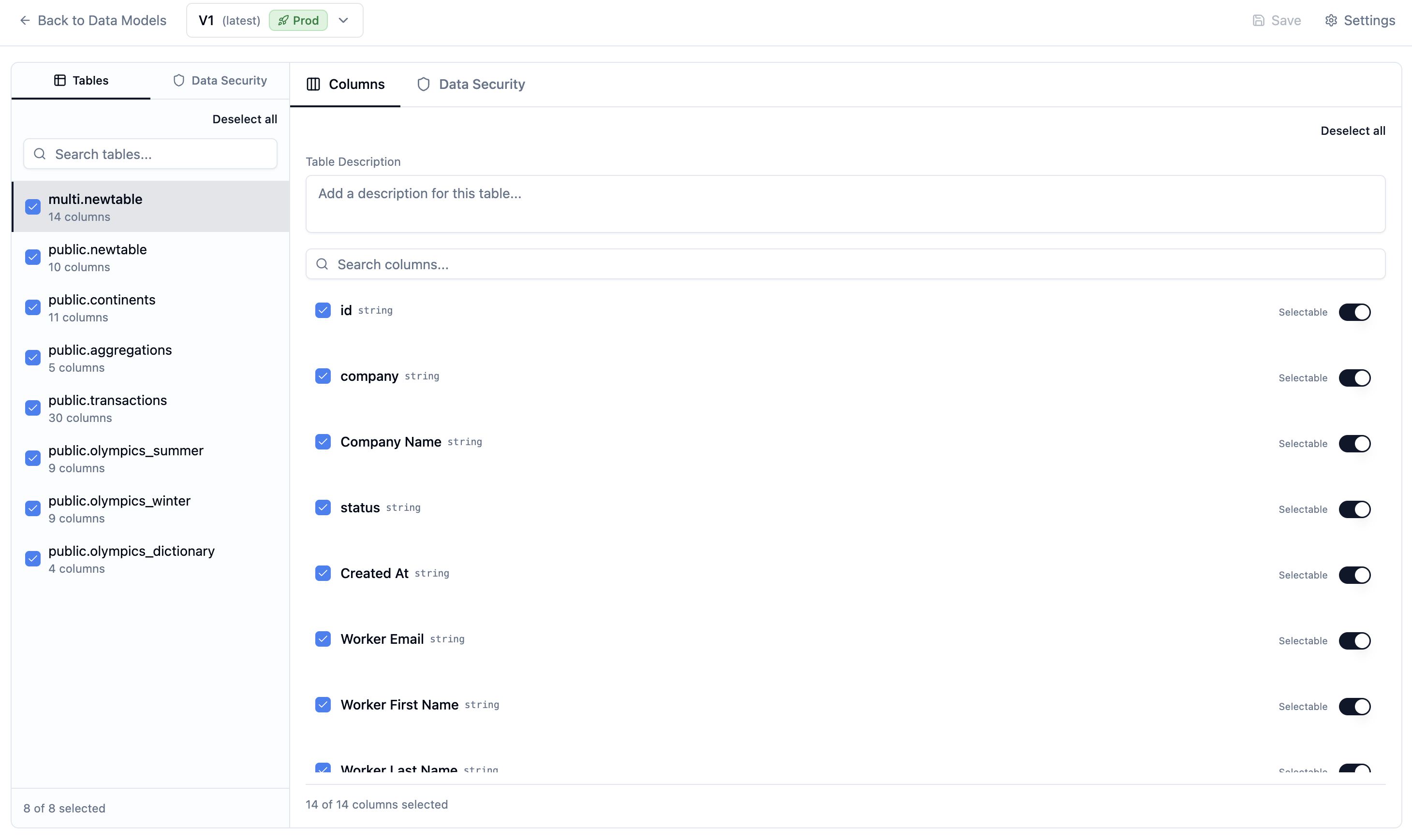 From the **Tables** tab in your Data Model, select the tables you want to expose to the agent. By default all tables from your connection are listed — check only the ones that are relevant to the use case you're building for.
Within each table, you can further control which columns are included. Expand a table to see its columns, then uncheck any that are unnecessary, sensitive, or likely to confuse the agent. The column list shows the name, data type, and any description you've added.
Less is more here. An agent scoped to 5 relevant tables with clear descriptions will significantly outperform one with access to 50 tables it has to guess about.
## Adding table and column descriptions
Descriptions are how you encode institutional knowledge directly into the schema. The agent reads these when generating SQL — they're the mechanism for telling it what your data actually means, not just what it's called.
From the **Tables** tab in your Data Model, select the tables you want to expose to the agent. By default all tables from your connection are listed — check only the ones that are relevant to the use case you're building for.
Within each table, you can further control which columns are included. Expand a table to see its columns, then uncheck any that are unnecessary, sensitive, or likely to confuse the agent. The column list shows the name, data type, and any description you've added.
Less is more here. An agent scoped to 5 relevant tables with clear descriptions will significantly outperform one with access to 50 tables it has to guess about.
## Adding table and column descriptions
Descriptions are how you encode institutional knowledge directly into the schema. The agent reads these when generating SQL — they're the mechanism for telling it what your data actually means, not just what it's called.
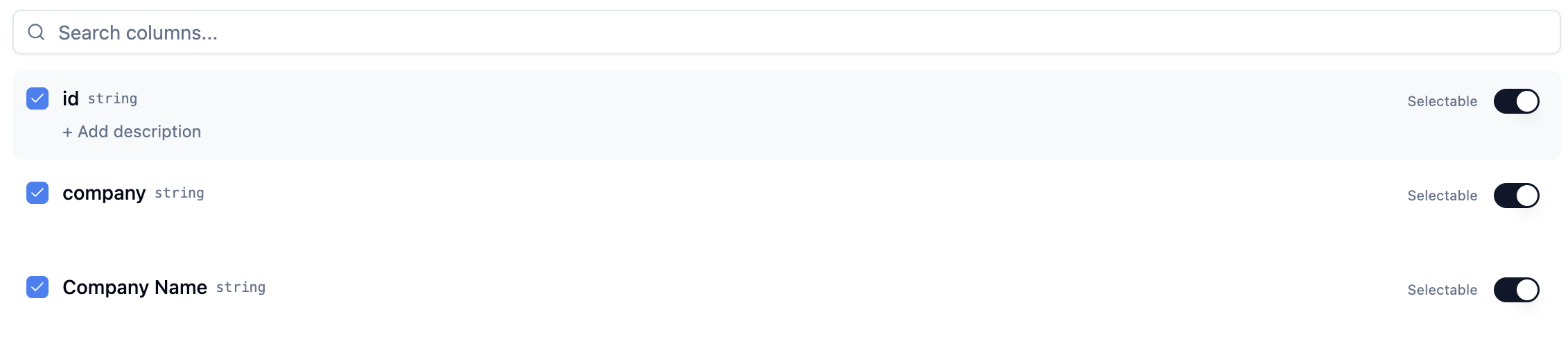 **Table descriptions** provide context for the whole table — what it represents, how it's populated, any important caveats. Click into a table and use the **Table Description** field at the top of the column panel to add this.
**Column descriptions** sit inline next to each column. Click the description field for any column and add a plain-English explanation. Useful descriptions answer the question a developer would have when first looking at the column: what does this value represent, what are the units, is there anything non-obvious about how it's calculated?
For example:
* `contact_name` → *"Name of the customer's point of contact for this order"*
* `owner_name` → *"Name of the sales rep (seller) who owns this account"*
* `arr` → *"Annual Recurring Revenue in USD, calculated as MRR × 12. Excludes one-time fees."*
The more specific your descriptions, the more reliably the agent will apply the right column to the right question.
## Marking columns as selectable
The **Selectable** toggle controls whether the agent can scan a column's distinct values at query time to inform how it builds SQL.
**Table descriptions** provide context for the whole table — what it represents, how it's populated, any important caveats. Click into a table and use the **Table Description** field at the top of the column panel to add this.
**Column descriptions** sit inline next to each column. Click the description field for any column and add a plain-English explanation. Useful descriptions answer the question a developer would have when first looking at the column: what does this value represent, what are the units, is there anything non-obvious about how it's calculated?
For example:
* `contact_name` → *"Name of the customer's point of contact for this order"*
* `owner_name` → *"Name of the sales rep (seller) who owns this account"*
* `arr` → *"Annual Recurring Revenue in USD, calculated as MRR × 12. Excludes one-time fees."*
The more specific your descriptions, the more reliably the agent will apply the right column to the right question.
## Marking columns as selectable
The **Selectable** toggle controls whether the agent can scan a column's distinct values at query time to inform how it builds SQL.
 When a column is marked selectable, the agent can run `DISTINCT()` over it to extract its unique values, and then use those values in two ways:
* **Categorical filtering in SQL writing** — the agent knows the valid filter values *before* it writes a `WHERE` clause. It knows that `region` contains "North America", "EMEA", and "APAC", so it filters on real values rather than guessing at spellings or inventing categories.
* **Text grep search** — the agent can search across a selectable column's values to find the exact entry a user referred to loosely (e.g. matching "acme" to the `customer_name` value "Acme Corp (US)").
Think of it as giving the agent the ability to power a select-style filter: it knows the possible values and can use them precisely.
Mark a column as selectable when:
* It contains categorical values users would naturally filter by (region, product, owner, status)
* The distinct values are finite and meaningful to business questions
* You want the agent to be able to enumerate or search options rather than guess at valid values
Leave it off for high-cardinality columns (IDs, free-text fields, timestamps) where scanning distinct values would be noisy or meaningless.
## Beyond the schema: the Knowledge Base tab
The Data Model editor has three tabs — **Tables**, **Global Data Security**, and **Knowledge Base**. Descriptions on tables and columns cover what your *data* means, but some context isn't about any one column: business policies, company background, definitions of terms users use loosely, and known caveats about the data. Those live in the Knowledge Base as searchable markdown documents that ship with each data model version. See [Knowledge Base](/ai-agent-builder/knowledge-base) for how to add and organize them.
## Saving your changes
Changes to the data model create a new draft version. Click **Save Version** in the top-right corner when you're ready to checkpoint your work. A data model version must be marked as **Production** before an agent can use it in a live environment.
Agents are linked to a specific data model version. Updating the data model does not automatically update agents that reference it — you'll need to update the agent's data model link and set a new production version.
## Next steps
Encode business rules, terminology, and behavioral guardrails into the agent.
Add example queries and charts the agent can reference when answering similar questions.
Store reference documents the agent searches on demand to interpret your terms.
Package procedures and conventions the agent loads when it needs them.
Let the agent record and apply each end user's preferences automatically.
Connect external tools and live systems as additional agent context.
When a column is marked selectable, the agent can run `DISTINCT()` over it to extract its unique values, and then use those values in two ways:
* **Categorical filtering in SQL writing** — the agent knows the valid filter values *before* it writes a `WHERE` clause. It knows that `region` contains "North America", "EMEA", and "APAC", so it filters on real values rather than guessing at spellings or inventing categories.
* **Text grep search** — the agent can search across a selectable column's values to find the exact entry a user referred to loosely (e.g. matching "acme" to the `customer_name` value "Acme Corp (US)").
Think of it as giving the agent the ability to power a select-style filter: it knows the possible values and can use them precisely.
Mark a column as selectable when:
* It contains categorical values users would naturally filter by (region, product, owner, status)
* The distinct values are finite and meaningful to business questions
* You want the agent to be able to enumerate or search options rather than guess at valid values
Leave it off for high-cardinality columns (IDs, free-text fields, timestamps) where scanning distinct values would be noisy or meaningless.
## Beyond the schema: the Knowledge Base tab
The Data Model editor has three tabs — **Tables**, **Global Data Security**, and **Knowledge Base**. Descriptions on tables and columns cover what your *data* means, but some context isn't about any one column: business policies, company background, definitions of terms users use loosely, and known caveats about the data. Those live in the Knowledge Base as searchable markdown documents that ship with each data model version. See [Knowledge Base](/ai-agent-builder/knowledge-base) for how to add and organize them.
## Saving your changes
Changes to the data model create a new draft version. Click **Save Version** in the top-right corner when you're ready to checkpoint your work. A data model version must be marked as **Production** before an agent can use it in a live environment.
Agents are linked to a specific data model version. Updating the data model does not automatically update agents that reference it — you'll need to update the agent's data model link and set a new production version.
## Next steps
Encode business rules, terminology, and behavioral guardrails into the agent.
Add example queries and charts the agent can reference when answering similar questions.
Store reference documents the agent searches on demand to interpret your terms.
Package procedures and conventions the agent loads when it needs them.
Let the agent record and apply each end user's preferences automatically.
Connect external tools and live systems as additional agent context.