

The Builder agent (also called the AI Builder) is a Beta feature.
spend_against_contract means”, “why did this answer get the wrong supplier count?”) and it reads the workspace, checks your data, and makes the edit.
It is a second agent, separate from the analytics agent your users talk to. The analytics agent answers questions about your data. The Builder agent changes how the analytics agent works.
You meet it in two places:
- When you create a workspace, it offers to set the whole workspace up from your schema, your files and your brand, in a few minutes.
- Afterwards, as a chat on the workspace’s Home page, where you ask for one change at a time.
Set up a new workspace
Every new workspace opens on guided setup, where the Builder agent (shown as Dash Builder on these screens) offers to configure it for you. Click Start, answer a few optional questions, and watch it work. Or click I’ll configure it myself to skip it.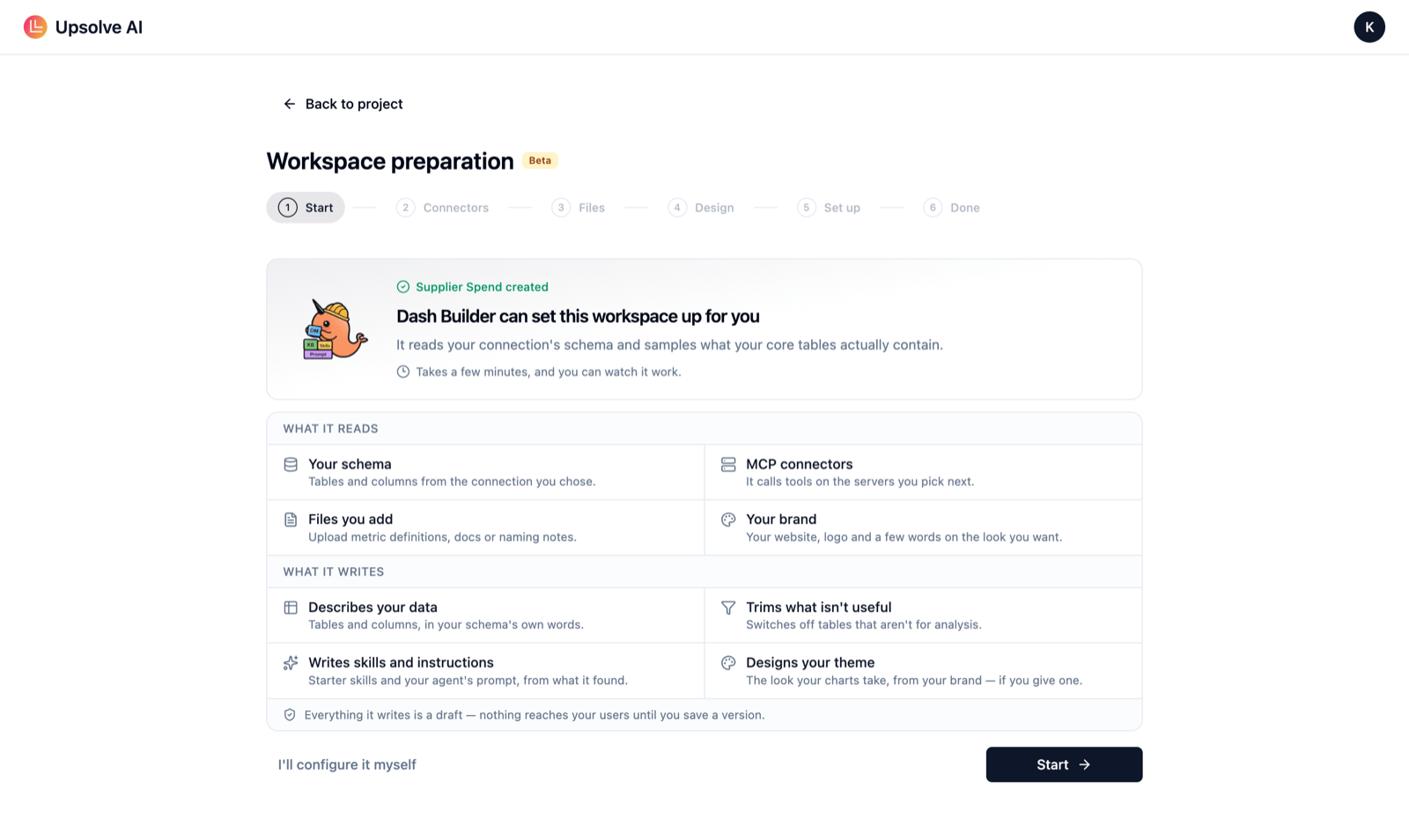
What it reads
Your schema, and what your core tables actually contain. The MCP servers you pick, such as a data catalog. Files you upload, such as metric definitions or naming notes. Your website, logo and a few words on your brand.
What it writes
Table and column descriptions. Tables switched off that aren’t for analysis. Knowledge base files. Two or three starter skills. The agent’s system prompts. A theme from your brand.
- Start: see what it will read and write.
- Connectors: pick the MCP servers it should take your team’s definitions from. For a workspace on your API, add your docs URL.
- Files: upload documents it should read first.
- Design: give it your website, logo and the look you want, or skip to keep the default theme.
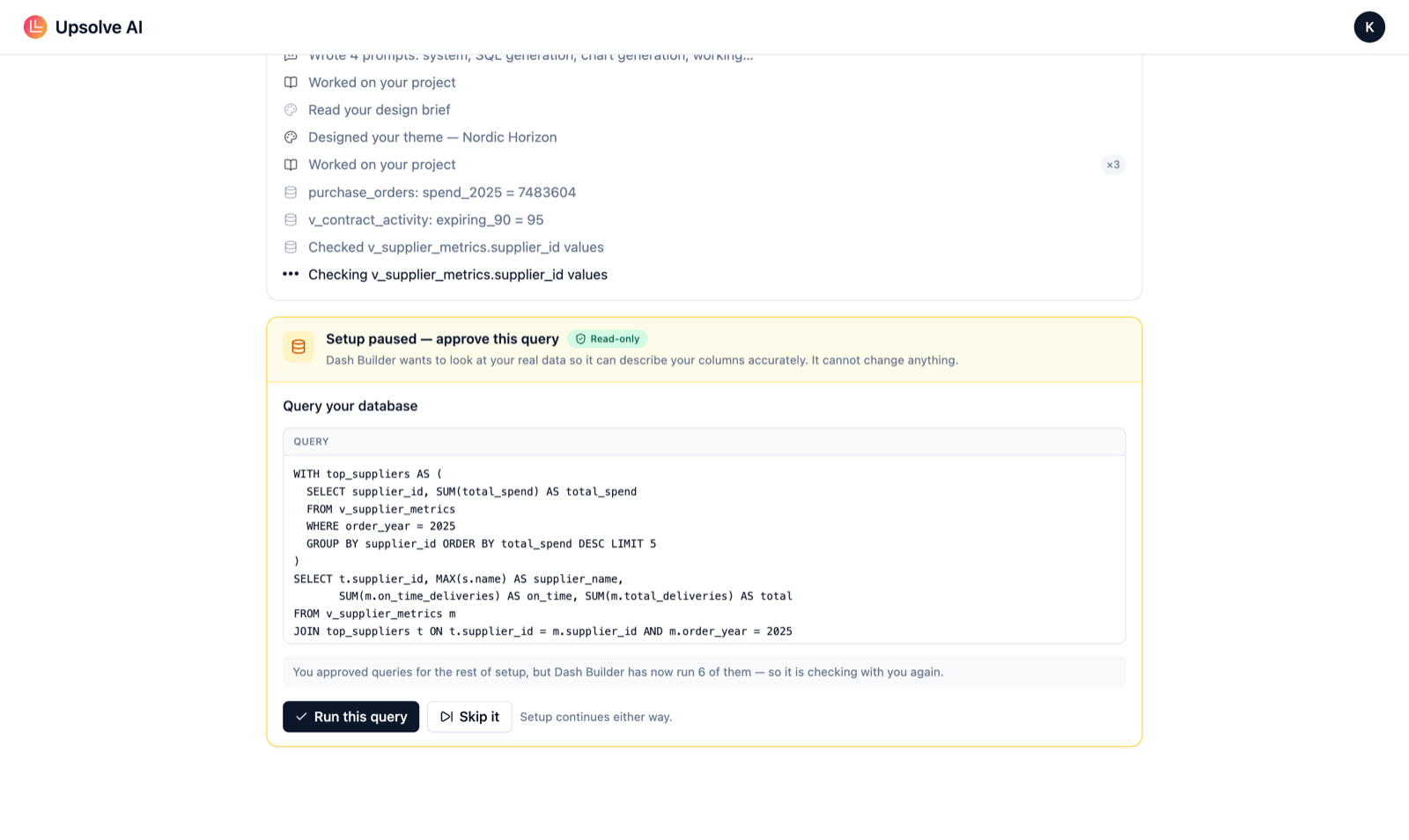
- Set up: choose whether it asks before each read-only query (Ask me each time) or runs them unattended (Run queries automatically), then watch it work. You can stop it at any point.
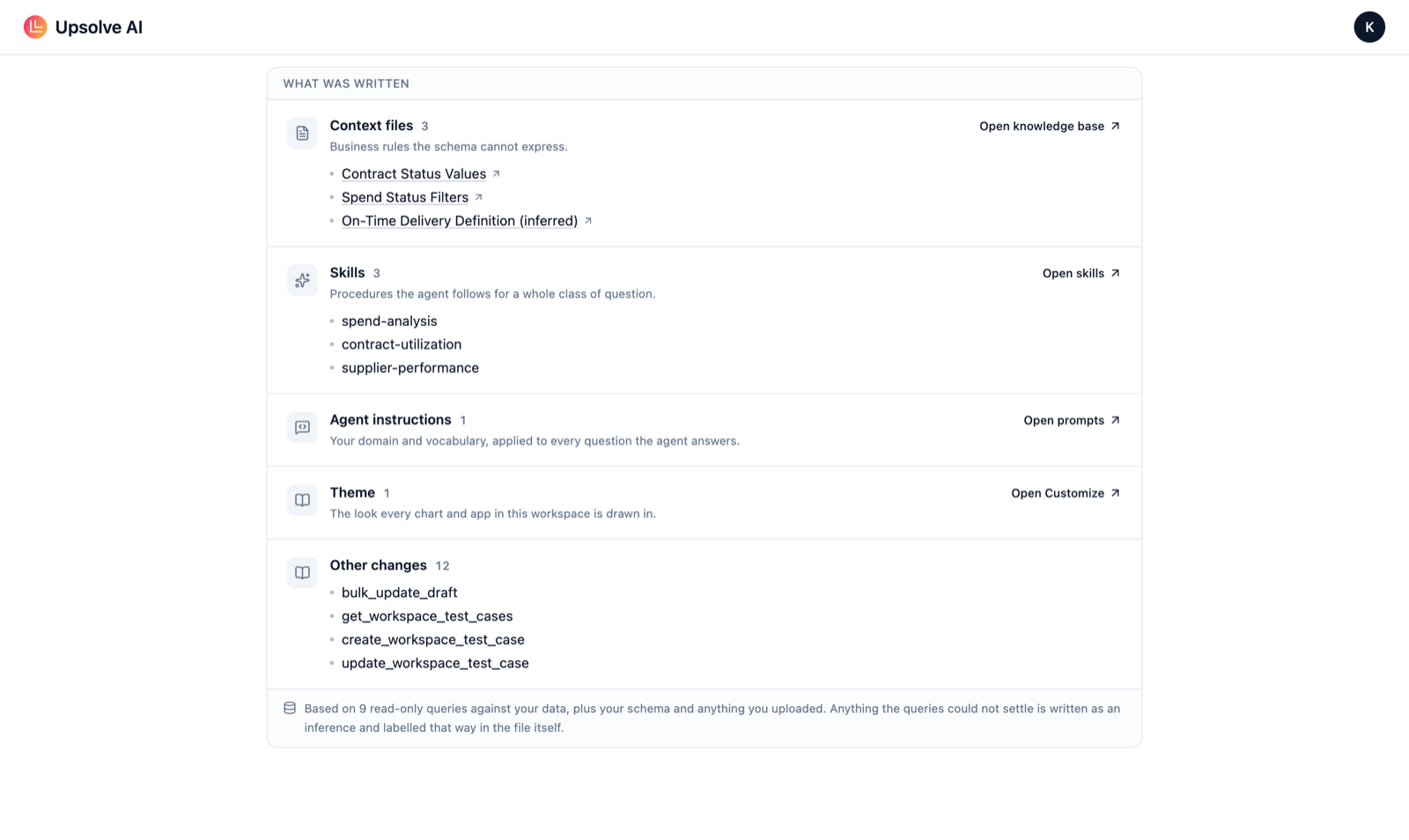
- Done: review what it wrote, with links to the Data Model, Knowledge Base and Customize pages.
- Your words win. Where your files or a connected system say what something means, it writes it their way, not from the column name.
- It checks before it describes. It queries your core tables to see real status codes, categories and date ranges, rather than guessing from names. Organizations that handle confidential data are never queried, so there it works from names, types and your files.
- It labels guesses. A metric definition it inferred rather than found goes in a knowledge base file marked as an assumption, so you can confirm or correct it.
- Connected systems are data, not instructions. If a document or tool result from a connector tries to tell it what to do, it ignores the request and writes a note telling you which connector sent it.
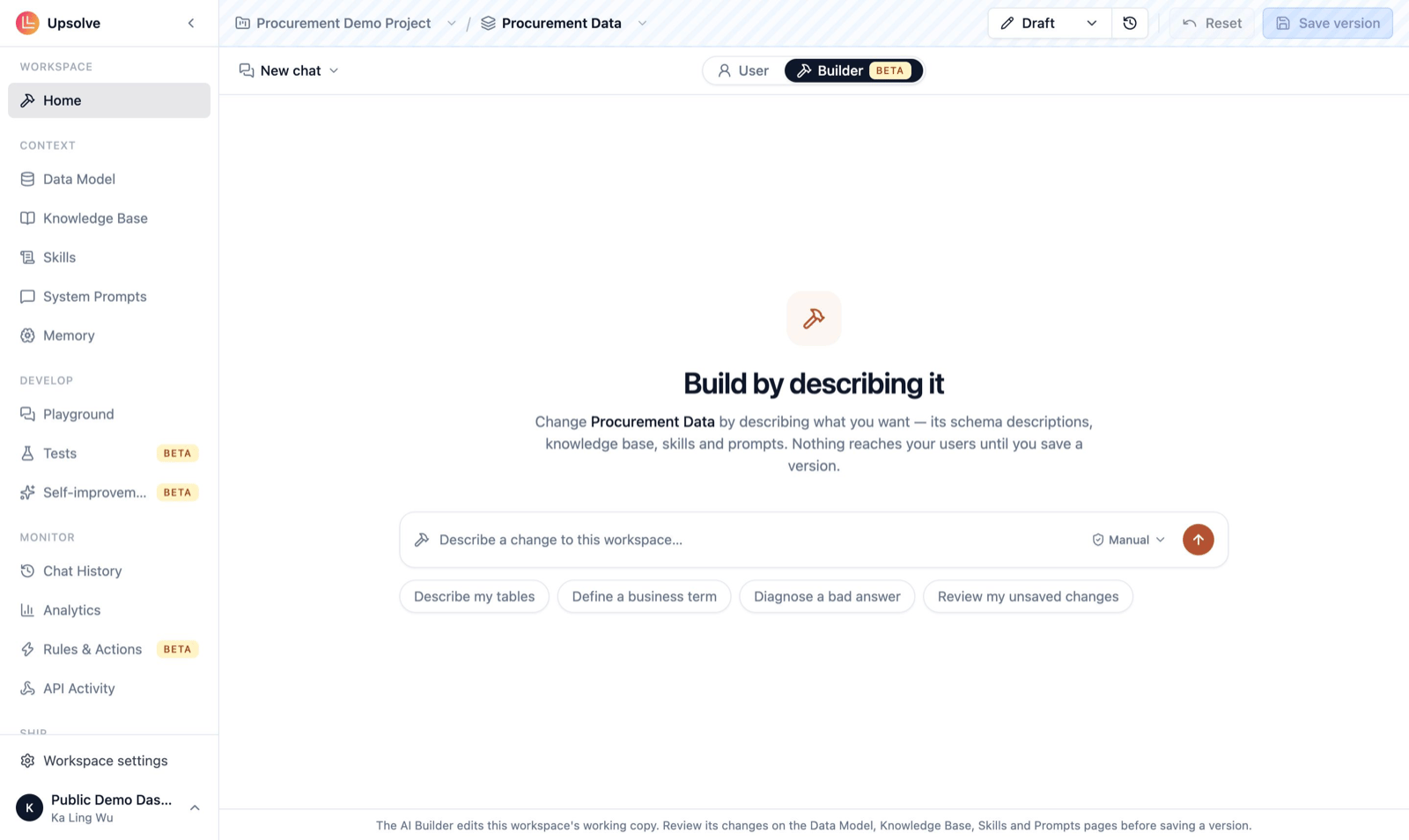
Open the Builder agent
- Open your workspace and click Home, the first item in the sidebar.
- In the toolbar at the top, switch from User to Builder.
- Describe my tables: write table and column descriptions from your schema and real values.
- Define a business term: turn a term your team uses into a definition the agent can apply.
- Diagnose a bad answer: work out why the analytics agent got something wrong, and fix the context that led it there.
- Review my unsaved changes: summarize what is in the draft before you save a version.
Only builders (owners, admins and members) see the Builder switch. Read-only members and end users never do.
What the Builder agent can do
The Builder agent works on one workspace at a time. It can:
It also reads the Upsolve documentation when it needs to, and ends a turn with suggested next steps you can click.
There is one thing it never does in a chat: ship. The Builder agent has no way to save a version or promote one to production. That is your decision. The one exception is guided setup, which you start yourself: when it completes, Upsolve saves and promotes what it wrote.
Running SQL is turned off for organizations that handle confidential data, and you’ll see a banner saying so. In a workspace with no database, the SQL and table tools aren’t available either.
Every change goes to the draft
The Builder agent edits the workspace’s Draft (its working copy), never a saved version. Your users keep getting answers from the version in production until you save a new version and promote it. See Workspaces: Draft, versions and production. To try its changes, open the Playground and select Draft. User mode on Home uses the version deployed to the selected environment, so it won’t show draft changes when a version is deployed. You can throw draft changes away with Reset if you don’t like them.Choose how much it asks first
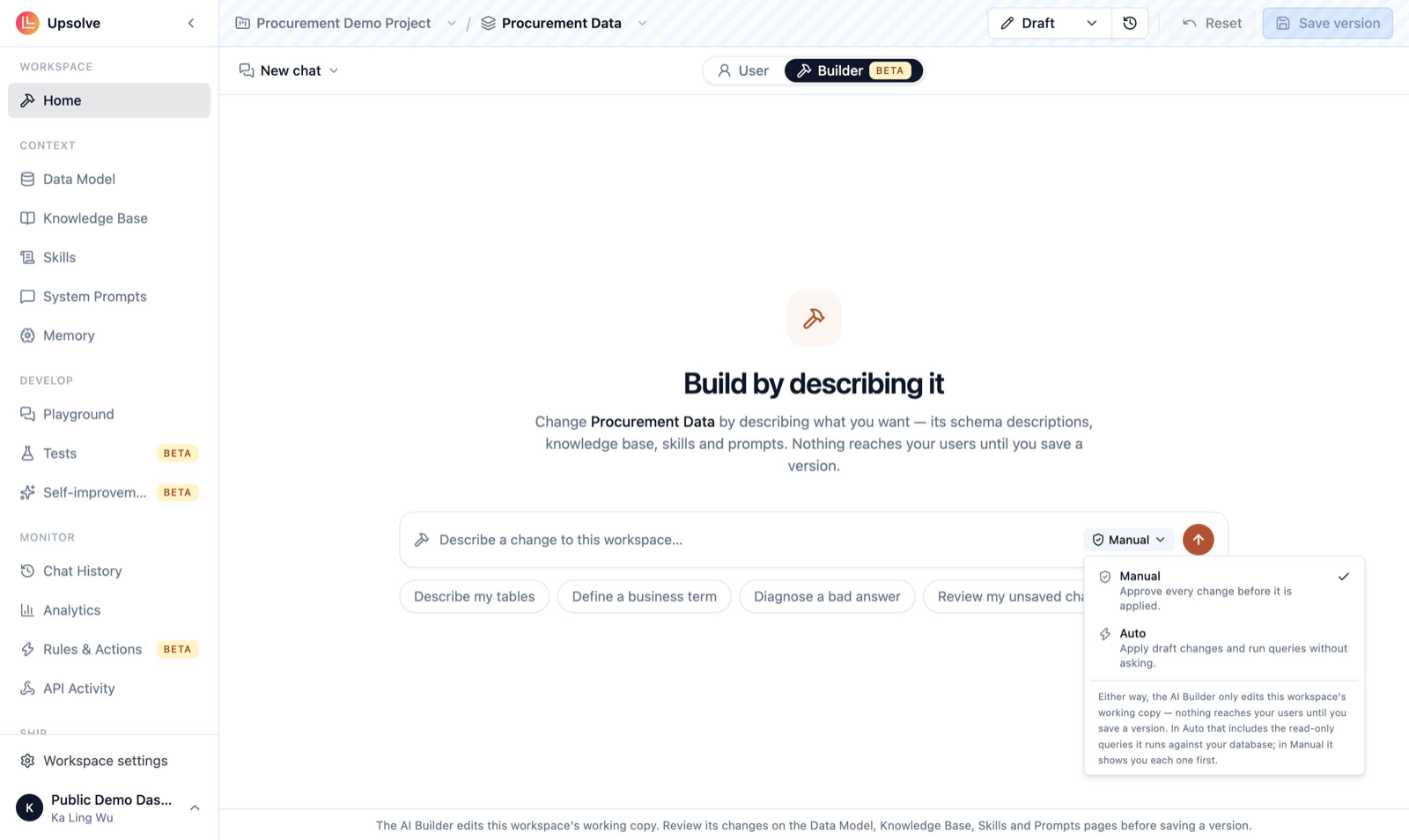
The selector next to the send button controls whether the Builder agent asks before it acts:- Manual (the default): it asks you to approve every change before applying it.
- Auto: it applies draft changes and runs read-only queries without asking.
- Approve: apply this change (or run this query).
- Decline: skip it. You can add a reason, and the Builder agent reads it on its next turn.
- Always allow: approve it and switch to Auto for the rest of the conversation.
Improve the agent from its chat history
The most useful thing to give the Builder agent is evidence. It can read the workspace’s Chat History, so you can point it at real conversations and ask it to fix what went wrong:- “Look at this week’s chats with a thumbs-down and tell me what they have in common.”
- “The agent keeps grouping small suppliers into ‘Other’. Find the chats where it did that and stop it.”
- “Here’s a trace ID where the answer was wrong. What caused it?”
Fix failing tests
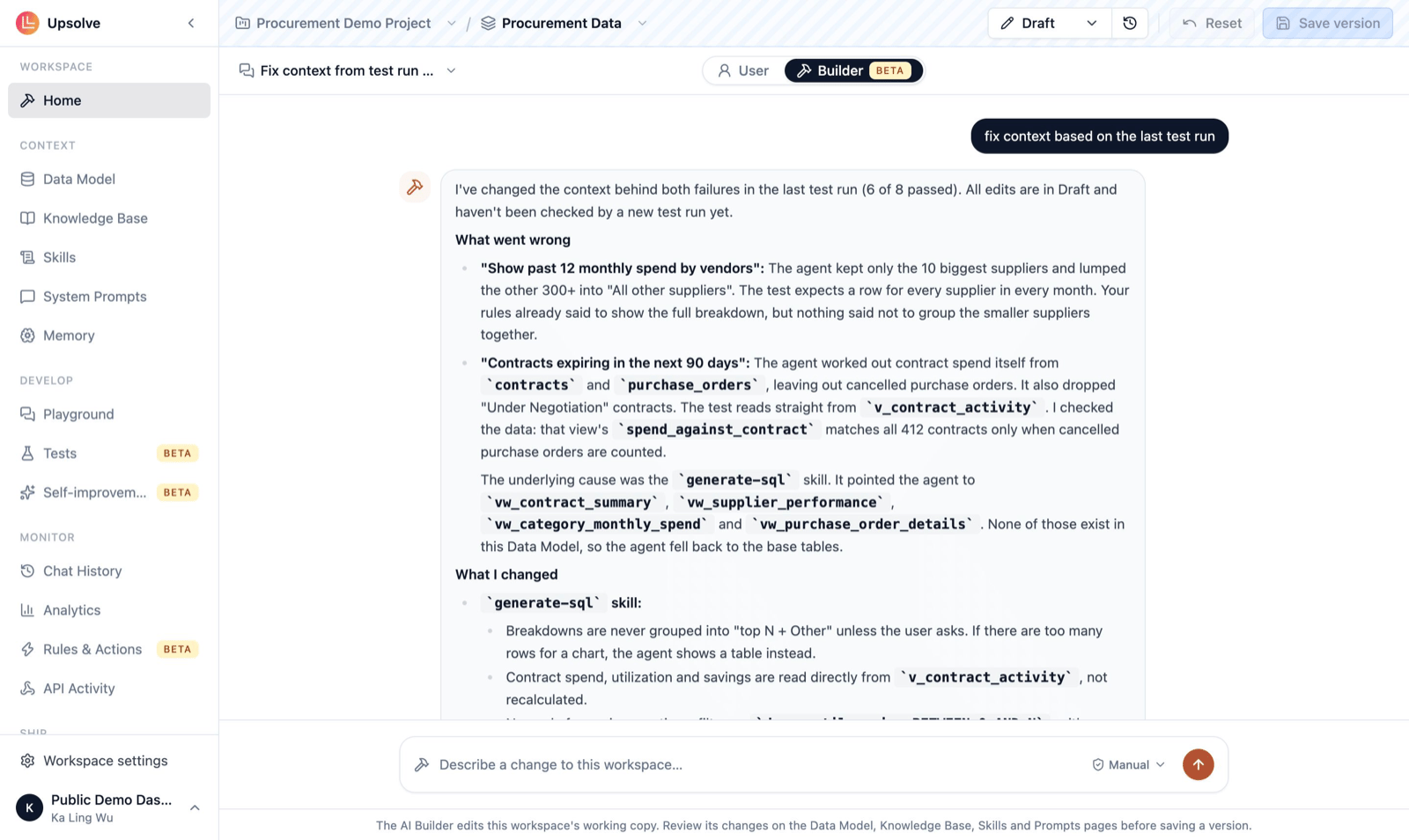
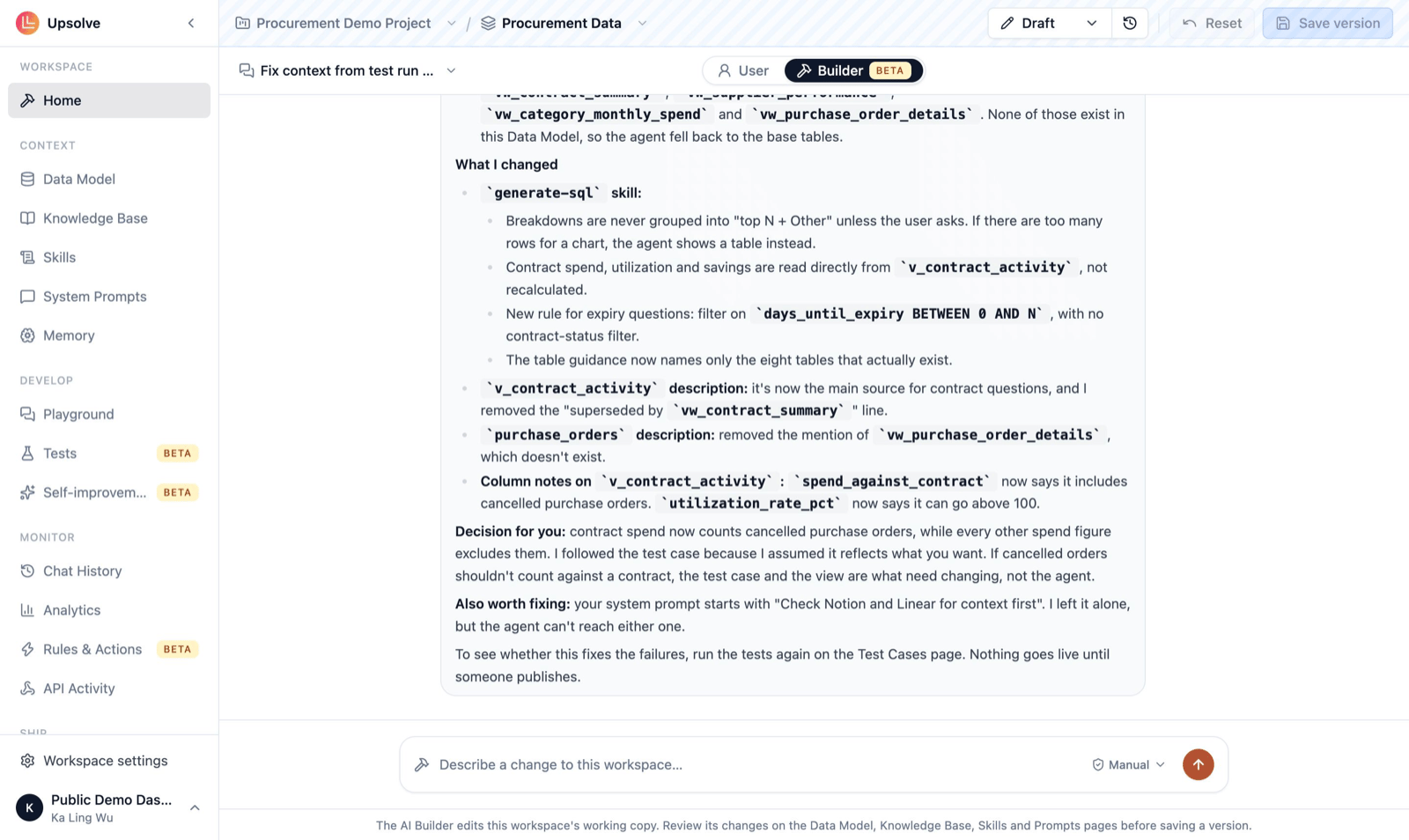
The Builder agent can read test runs too. After a run with failures, ask it to “fix the context based on the last test run”. It reads each failing case and the evaluator’s report, finds the cause, and edits the draft. Then re-run the tests to check the fix before you save a version. You can also ask it to write test cases for you, for example “add a test case for contracts expiring in the next 90 days”, once you’ve agreed the right answer.A good working loop
- Find the problem: a thumbs-down in Chat History, a failing test, or a question you know the agent gets wrong.
- Ask the Builder agent to diagnose it and fix the context.
- Review its changes on the Data Model, Knowledge Base, Skills and Prompts pages, or ask it to “review my unsaved changes”.
- Test: run your test cases against the draft.
- Save a version when you’re happy, and promote it.
Credits and limits
- The Builder agent runs on Upsolve’s most capable model tier, and every turn uses AI credits. You need at least one credit remaining to start a turn.
- One turn can take up to 40 steps. Long jobs (describing a hundred columns, say) may need a follow-up “keep going”.
Next steps
Tests
Write test cases and check every change against them.
Self-improvement
Let the Builder agent review chats on a schedule and suggest fixes.
Chat History
Find the conversations worth improving.
Encode Your Context
How each kind of context shapes the agent’s answers.