

Rules & Actions is a Beta feature. It is on for every workspace, and a builder can switch it off.
- Every Monday at 8:00, email the leadership team a PDF of this canvas.
- Every day, if total spend in the last 12 months passes 20M, message me on Slack.
- When a new transaction over $10,000 appears, flag it in our billing system.
- Put a “Request approval” button on the canvas that posts the selected supplier to our procurement API.
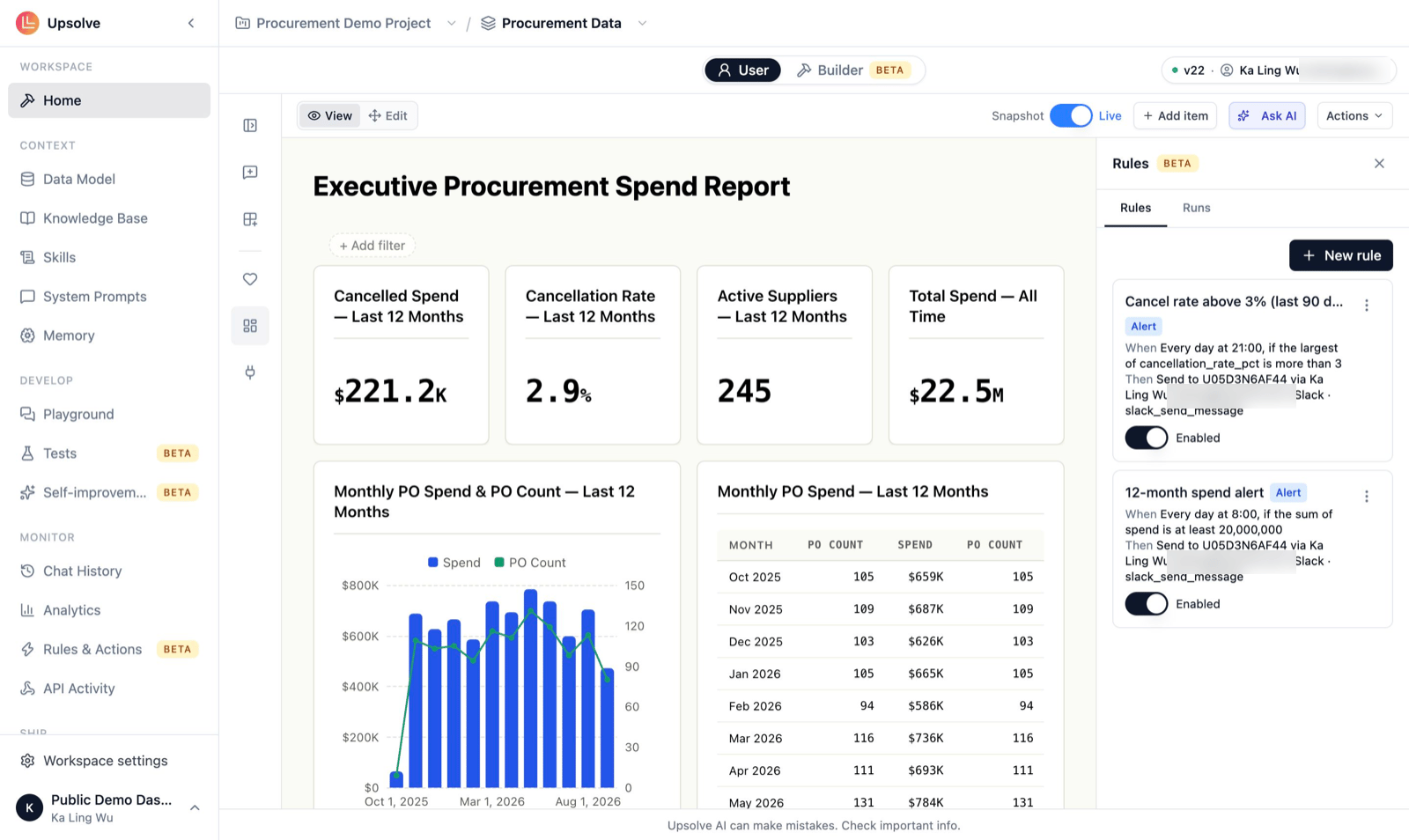
Rules are on for every workspace
Rules are on by default. Everyone with access to a workspace can create rules on their own canvases, including your embedded end users. A builder can switch them off, and back on, with Allow rules in this workspace at the top of Monitoring → Rules & Actions. Switching them off deletes nothing: no canvas offers Rules, and no rule runs, until they are switched back on. On the same page’s Settings tab, under Email from rules, decide whether email rules may Send from Upsolve when no domain is set up. If your organization has a verified sending domain, emails come from it; otherwise they come from Upsolve’s address only when this is on.The parts of a rule
Every rule answers three questions: when does it run, what does it check, and what does it do.When: three kinds of rule
If: the condition (alerts)
An alert reads one chart that is already on the canvas and checks it. The condition can be:- A filter on the rows, such as amount > 10,000 or status is Overdue.
- A threshold on the result: any row at all, a row count, or the sum, average, minimum or maximum of a column.
- A question for AI, for things a filter can’t express (“does this look unusual?”). It answers yes or no, or picks one of 2 to 10 options you give it.
- On change: only when the answer changes, for example when spend first crosses the threshold.
- Every time: on every check where the condition holds.
- New rows only: once per new row, for example each new large transaction. This needs a column that identifies a row, such as
transaction_id.
Then: the action
Each rule does one thing:- Email: up to 25 recipients you choose, or the person the rule acts for, such as whoever presses a button or the owner of a schedule. That person’s email comes from the reserved
emailproperty you send when they sign in (see Reserved user properties). Recipients never come from the data or from what someone types. - A tool on an MCP connection: anything a connected MCP server can do. This is how rules post to Slack: connect Slack, then ask for “send it to #procurement-alerts”. The channel or recipient is fixed when you save the rule, so the data can’t redirect a message.
- A write to an API connector: call an approved write operation on one of your workspace’s API connectors, such as
POST /transactions/{id}/flag.
Attach (optional)
Any rule can attach the evidence:- A PDF of the canvas, sent as a link to a report page with a Download PDF button. Report links last 30 days.
- A link to the canvas.
- The rows behind up to three charts, as CSV files.
Create a rule
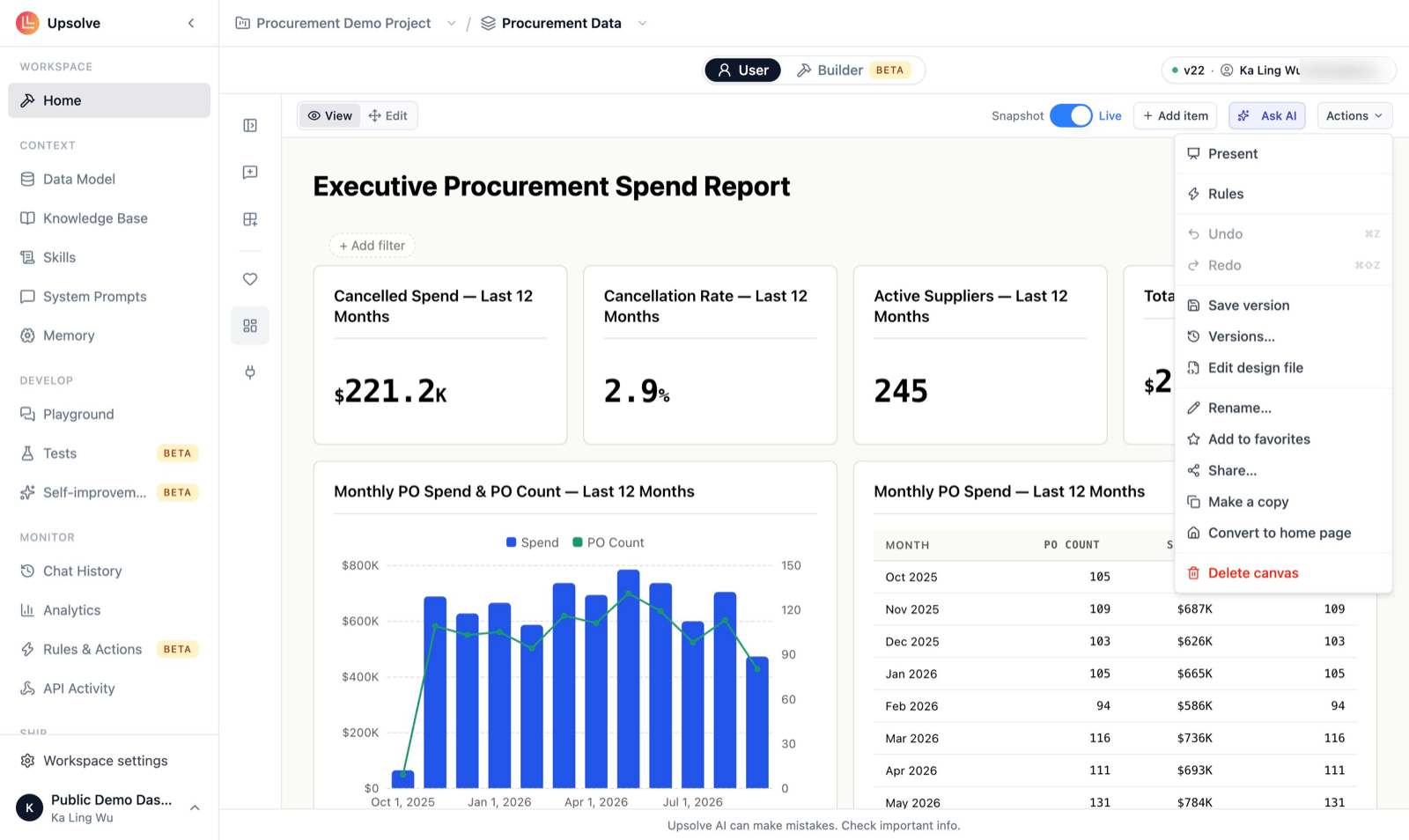
- Open a canvas, and choose Actions → Rules. The Rules sidebar opens.
- Click New rule.
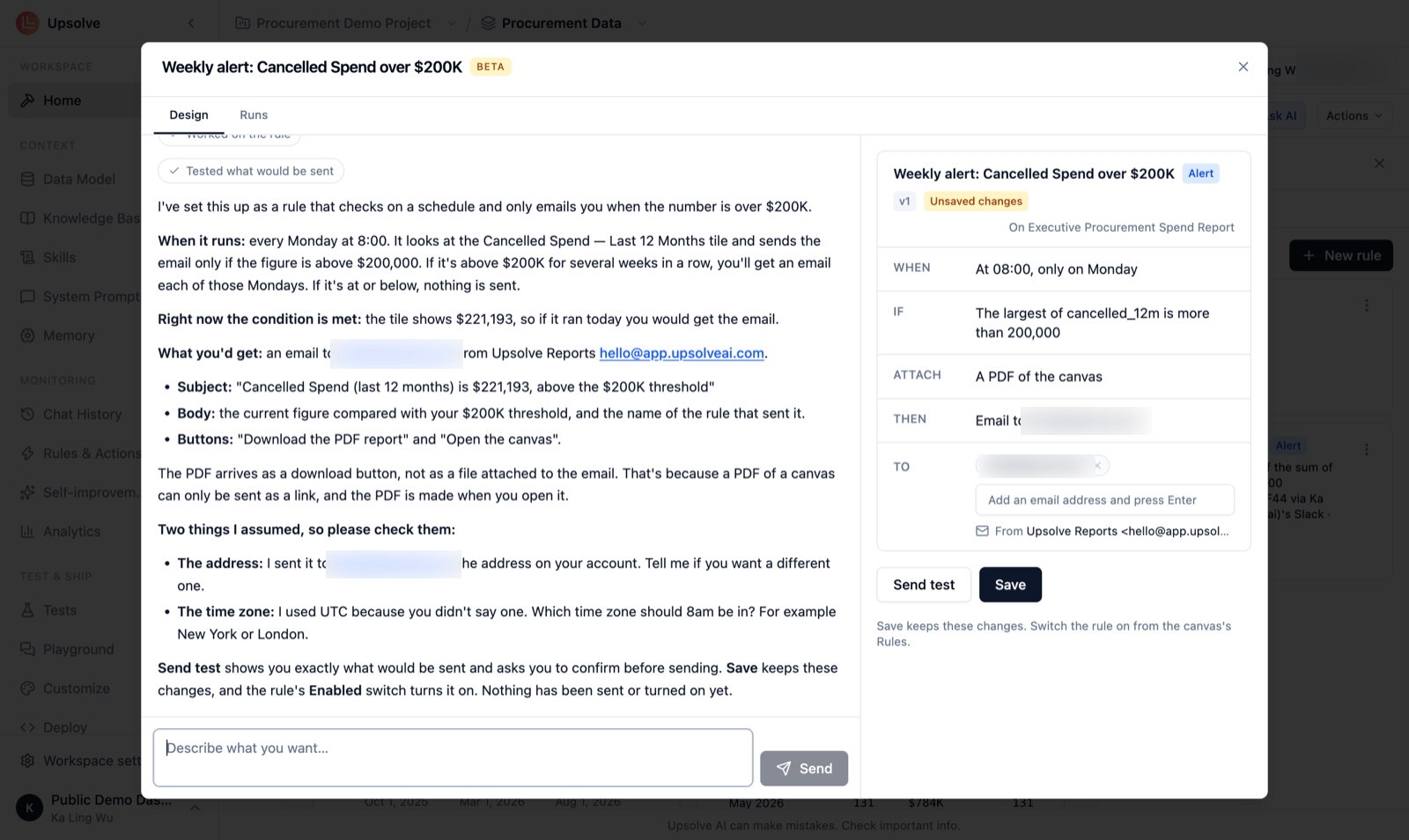
- Describe what you want in the designer chat on the left, for example: “Every weekday at 9, if any open purchase order is more than 30 days late, email me and procurement-lead@acme.com the list as a CSV.”
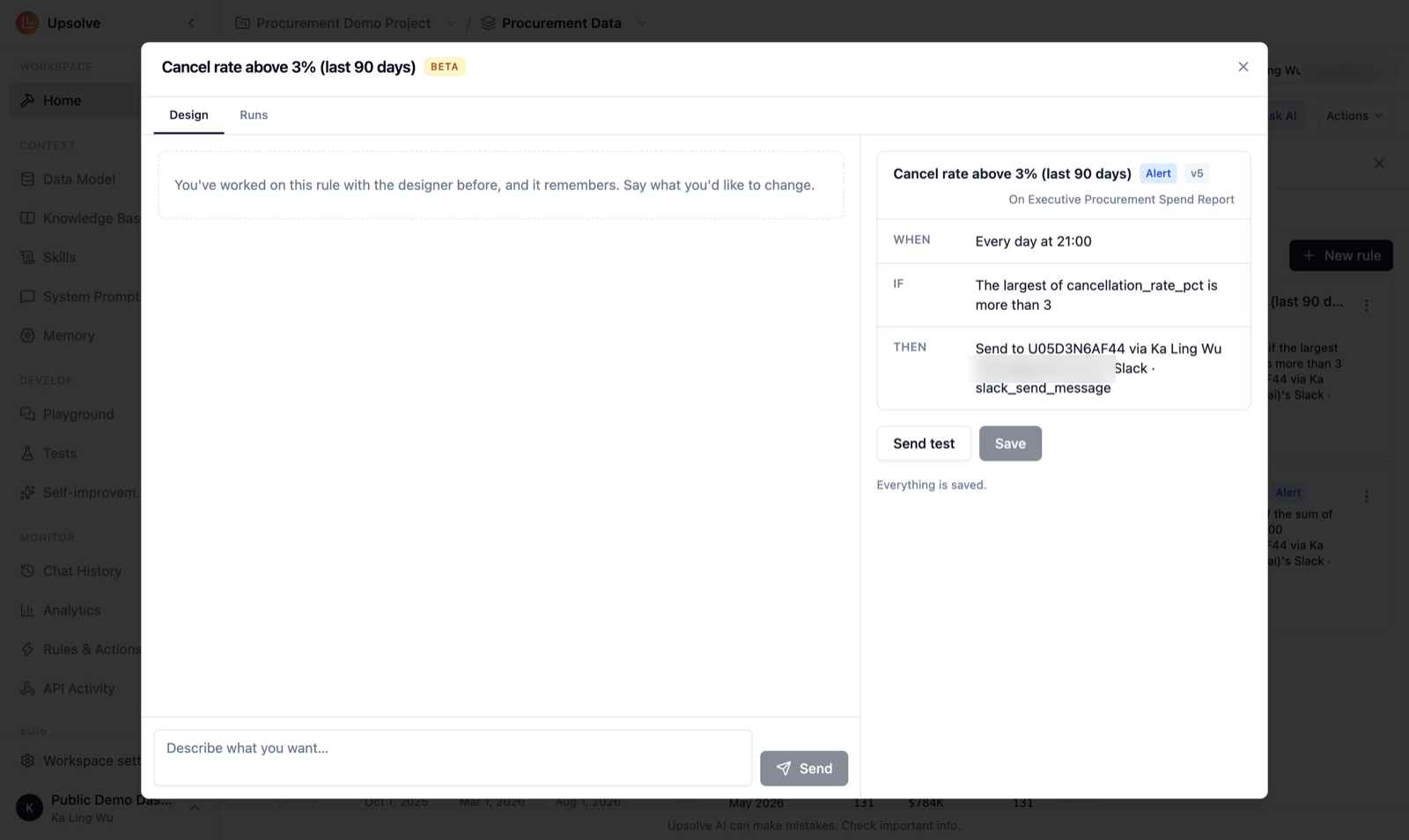
- The draft on the right fills in as the designer works, under When, If, Attach and Then. Keep chatting to change any part of it.
- Click Send test to see exactly what the rule would send, then Save.
- Switch the rule on with its switch in the Rules sidebar.
Or ask the chat
You can also create a rule from the canvas’s Ask AI chat. Ask for it in the same words (“alert me on Slack when cancellation rate goes above 5%”), and the agent hands the request to the rule designer, saves the rule and, for a button, places it on the canvas. The chat can test, list and switch off rules, but it can never switch a rule on or delete one. It shows you a card for the rule, and you switch it on yourself.Test before anything is sent
Nothing goes out while you’re designing:- The designer checks the condition against the live data and shows what it would find, without sending anything.
- Send test builds the real message and shows it in a Confirm send dialog: what it goes through, where it goes, what it says, the attachments and the data. Nothing is sent until you click Confirm.
Switch it on, and keep it healthy
Edits are kept as unsaved changes until you click Save, and every save creates a new version of the rule. Only a person can switch a rule on. The chat agent can draft, save and switch off rules, never switch them on. Upsolve pauses a rule automatically, and tells you why, when:- its owner hasn’t been active for 14 days,
- it has failed 5 times in a row,
- the connection it sends through was lost,
- the chart or canvas it reads was removed,
- a builder paused it, or
- it became invalid.
Run history
Every time a rule runs, it records a run: when, why (Scheduled, Alert, Clicked by name, Test, or Suppressed when a limit was hit), and how it went (Sent, Failed, Sending, Check failed, Awaiting confirmation, Fired). Each run carries the rule version it ran. Open a run to see the data it read, what it sent, any files (Open report / Download), and the response from the destination. A failed run can be retried by hand. Writes to an API are never retried automatically. The Runs tab of the Rules sidebar shows the canvas’s runs; a rule’s own editor has a Runs tab too. Runs are kept for 90 days and files for 30 days.Buttons on the canvas
A button rule puts an action right on the canvas, for the people who use it. The designer writes the button; once saved, use Add to canvas on its card. In Edit mode you can drag and resize it like any block.- Only someone who can edit the canvas’s design can add a button to it.
- A switched-off button stays on the page, marked disabled, and can’t be pressed.
- A button that can’t be used shows why: switched off, connection missing, daily limit reached, and so on.
- Buttons never work on a public canvas link.
Who a rule acts as
This decides whose data a rule reads and whose account it sends from:- Schedules and alerts run as the rule’s owner, with the owner’s data access and the owner’s connection.
- A button runs as the person who presses it, with their data access and their own connection. The first time someone presses a Slack or MCP button, they choose which of their connections to use. An API connector button uses the presser’s own credentials; if they haven’t connected yet, the button asks them to.
- Email buttons always send from your organization’s sender.
For builders: oversee every rule
Monitoring → Rules & Actions lists every rule in the workspace, whoever made it, and every run of them. Its Allow rules in this workspace switch turns rules on or off for the workspace, and its Settings tab holds who email rules send from. From here a builder can Pause any rule. Read-only members can’t open it. See Rules & Actions Monitoring.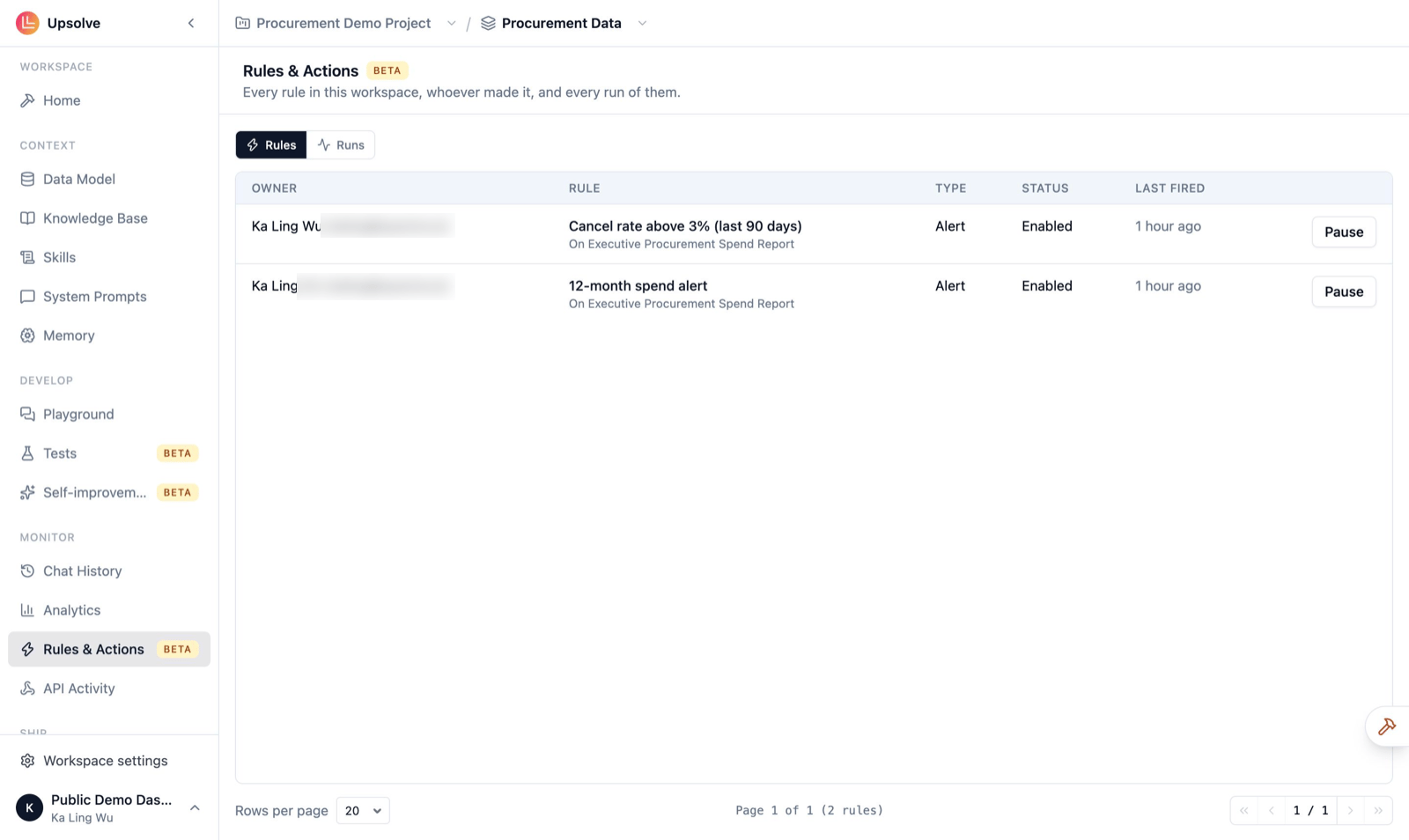
Limits
When a limit is hit, the run is recorded as Suppressed rather than sent.
Rules aren’t available to organizations that handle confidential data, or in Upsolve Local and on-premises installations. Each rule has a single action; to notify two places, create two rules. A rule can move to another canvas only while it’s switched off.
Next steps
Canvas
Build the canvas your rules watch.
API Connectors
Connect your own API so rules can make changes in your product.
Builder Agent
Improve the context behind the charts your rules read.
Self-improvement
Let the workspace improve itself on a schedule.